
Saved Templates
A template is a named snapshot of wizard style — format, voice, background, music, and thumbnail. Each new job still needs its own title and prompt (or script / voiceover). Open Saved Templates from the app sidebar to manage them.
Create
On the Saved Templates page, use New template: enter a name, pick a format, then submit. Faceless Documentary is selected by default when that format is enabled; otherwise Vector Explainer (or the first available format) is selected.
The editor opens next. Fill Voiceover, Style, Music, and Thumbnail, then Save changes. Use only works after those required settings are saved.
You can also finish the create wizard once, then click Save as template on the Thumbnail step, Library, or Progress page.
Use
On Create Video, pick the template, add a title plus a prompt (or a custom script or voiceover). Duration and model can still be changed for that job. Style — voice, background, music, thumbnail — comes from the template. Avatar Video templates also store Avatar Intro Only and AI Image + AI Video. REST, MCP, and CLI inherit those flags and can override them per job — see API, CLI, and MCP.
Use and build templates from Claude or ChatGPT (MCP)
Connect the Cliptude MCP server (https://mcp.cliptude.com/mcp) and ask your agent for a video. It starts
with your saved templates: in Claude and ChatGPT, list_templates shows them as a gallery. Avatar Video
cards show the presenter and Vector Explainer cards the character. Load more templates
shows the rest, and templates in retired formats stay hidden behind a button. Click
Use this template on the one you want.
If none fits, the agent builds a new one with the pickers, one at a time: voice, then the presenter (Avatar Video)
or character (Vector Explainer), then music, background and style. create_template and
get_template show the result as a template card with every setting, plus
Make a video with this template and Change something.
Before anything is created or charged, the agent shows the review card: every setting, any warnings, a checkbox for anything you turned off, and the credits. The Script (N words) tab holds the script. Nothing happens until you click Confirm.
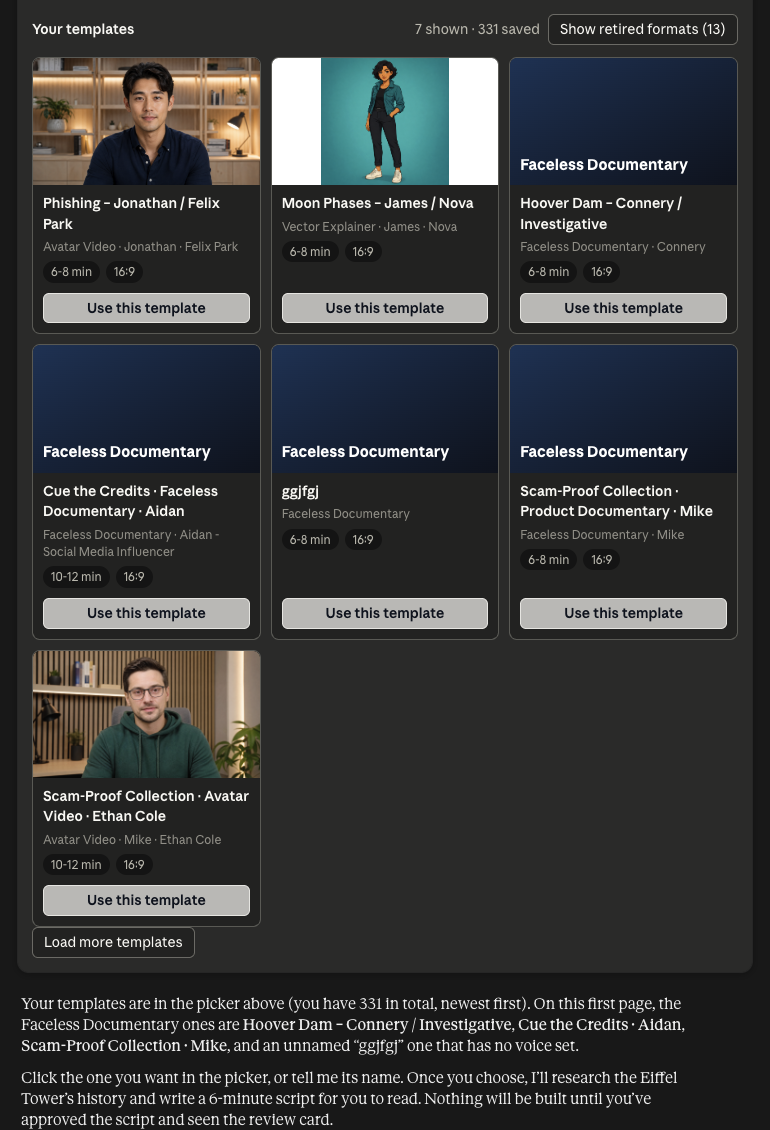
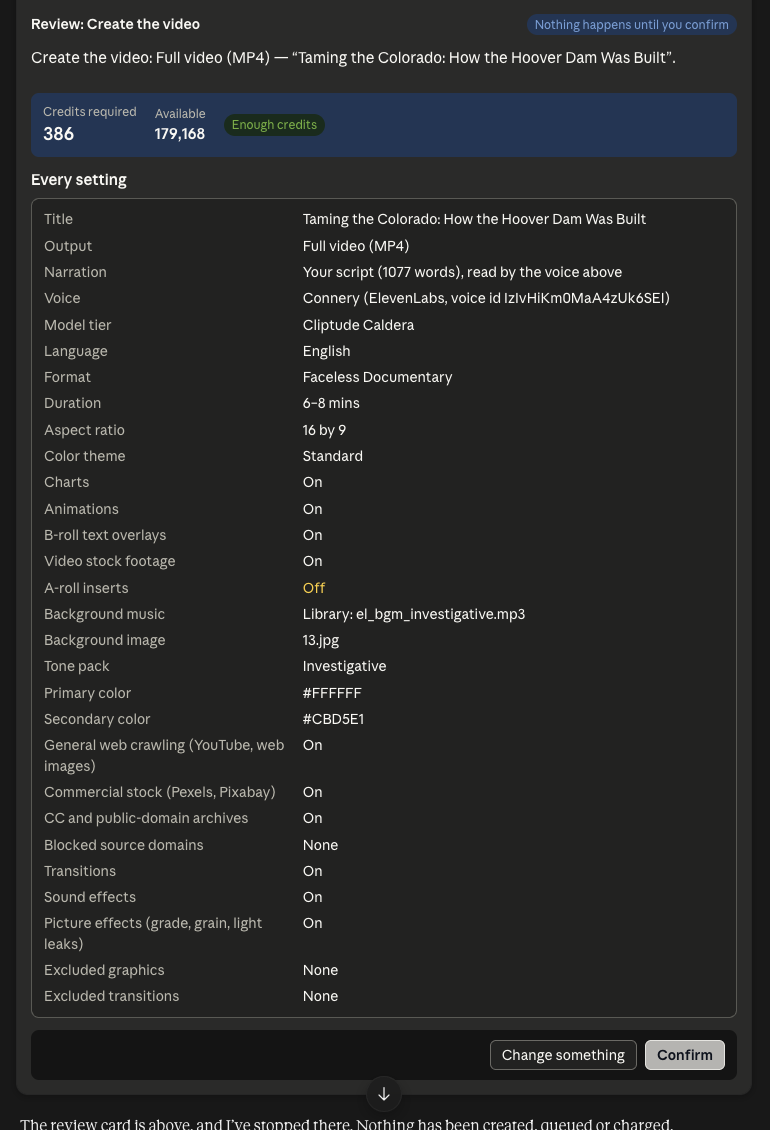
In Claude a click saves your pick on Cliptude and the picker says "Saved. Type next in the chat to continue."
Type next and the agent carries on with it. In ChatGPT the pick is sent as your next message.
Claude Code, Codex, Cursor and other agents that show no widgets give you a cliptude.com/pick link with the same
picker instead. It works once, for 15 minutes, and only
for you when you are signed in. The agent reads the result with get_pick. From a terminal:
cliptude pick <pick_id> --url <link> opens it and waits.
Setup for each agent: Claude, ChatGPT, Claude Code, or any other MCP agent.
Edit
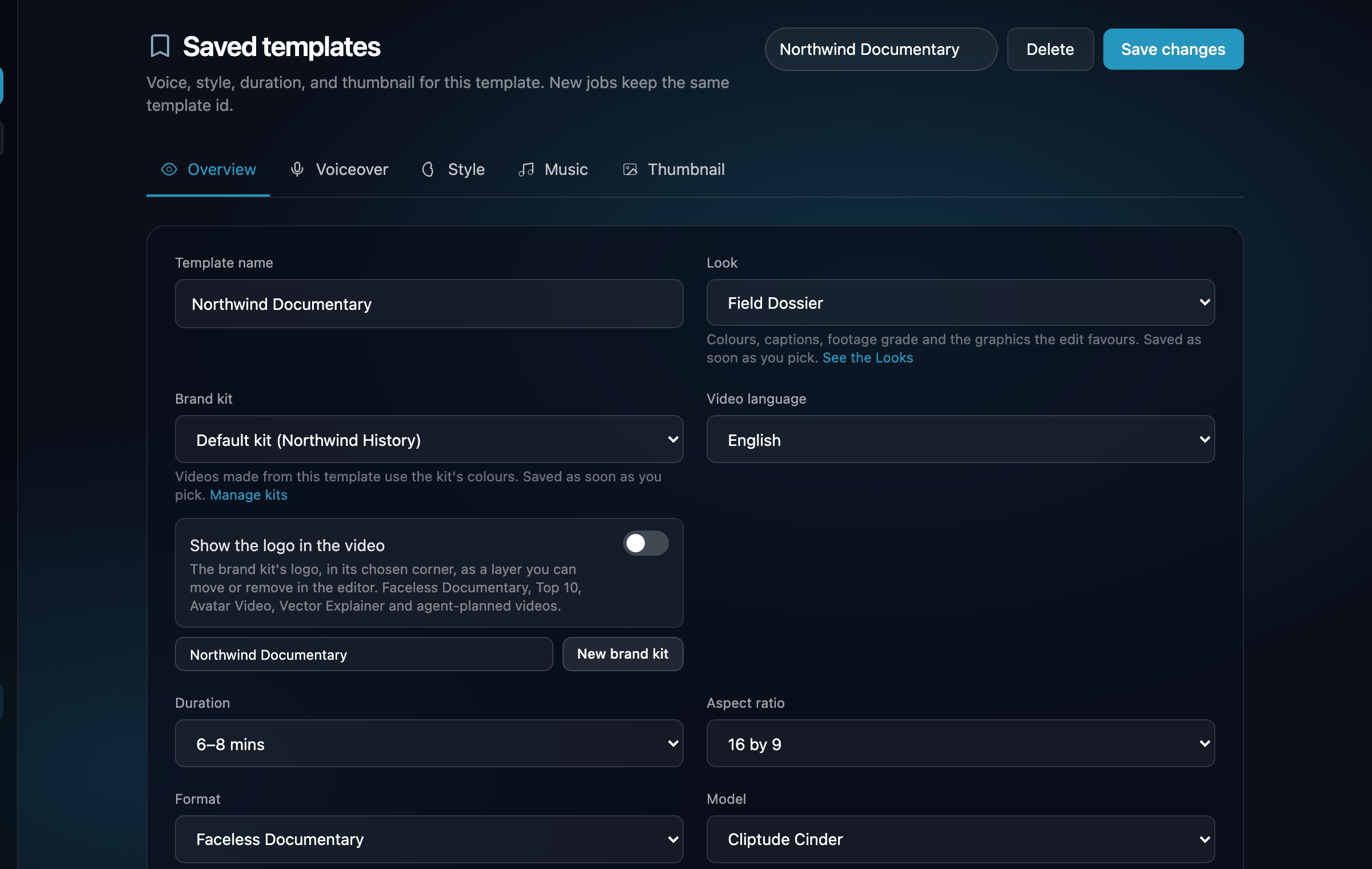
Click Edit on a template. Tabs cover Overview, Voiceover, Style, Music, and Thumbnail. Save changes updates the same template id, so existing API and CLI jobs keep using it. Changing format clears style fields for the previous format — review Style after you switch.
Delete
Click Delete, then confirm in the modal. The template is removed from Saved Templates. Videos you already generated with it are unchanged.
Limits
- Only programmatic formats can be saved as templates (for example Faceless Documentary, Vector Explainer, Talking Head).
- Talking Head templates still need a new presenter clip for every job.
- To generate from a template with the API, CLI, or MCP, see API, CLI, and MCP.