
Brand Kits
A brand kit holds one channel's look: a logo, five colours and four fonts. Running several channels? Make one kit per channel and attach each kit to that channel's saved template. Open Brand Kits from the app sidebar.
Create a kit
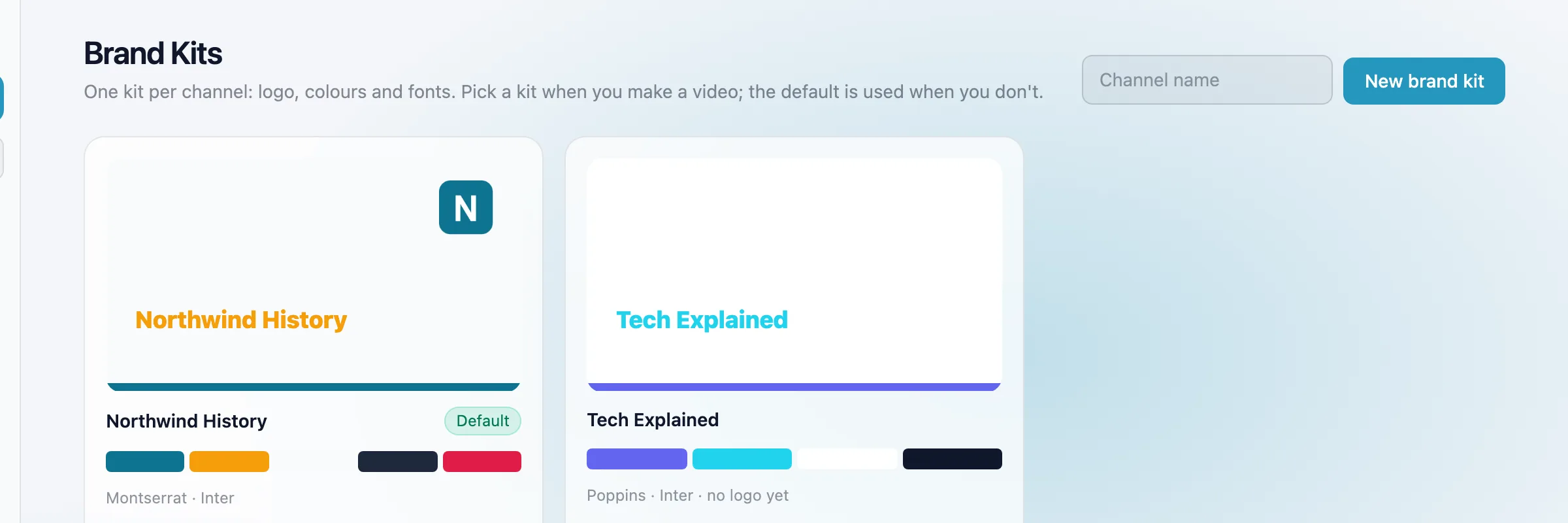
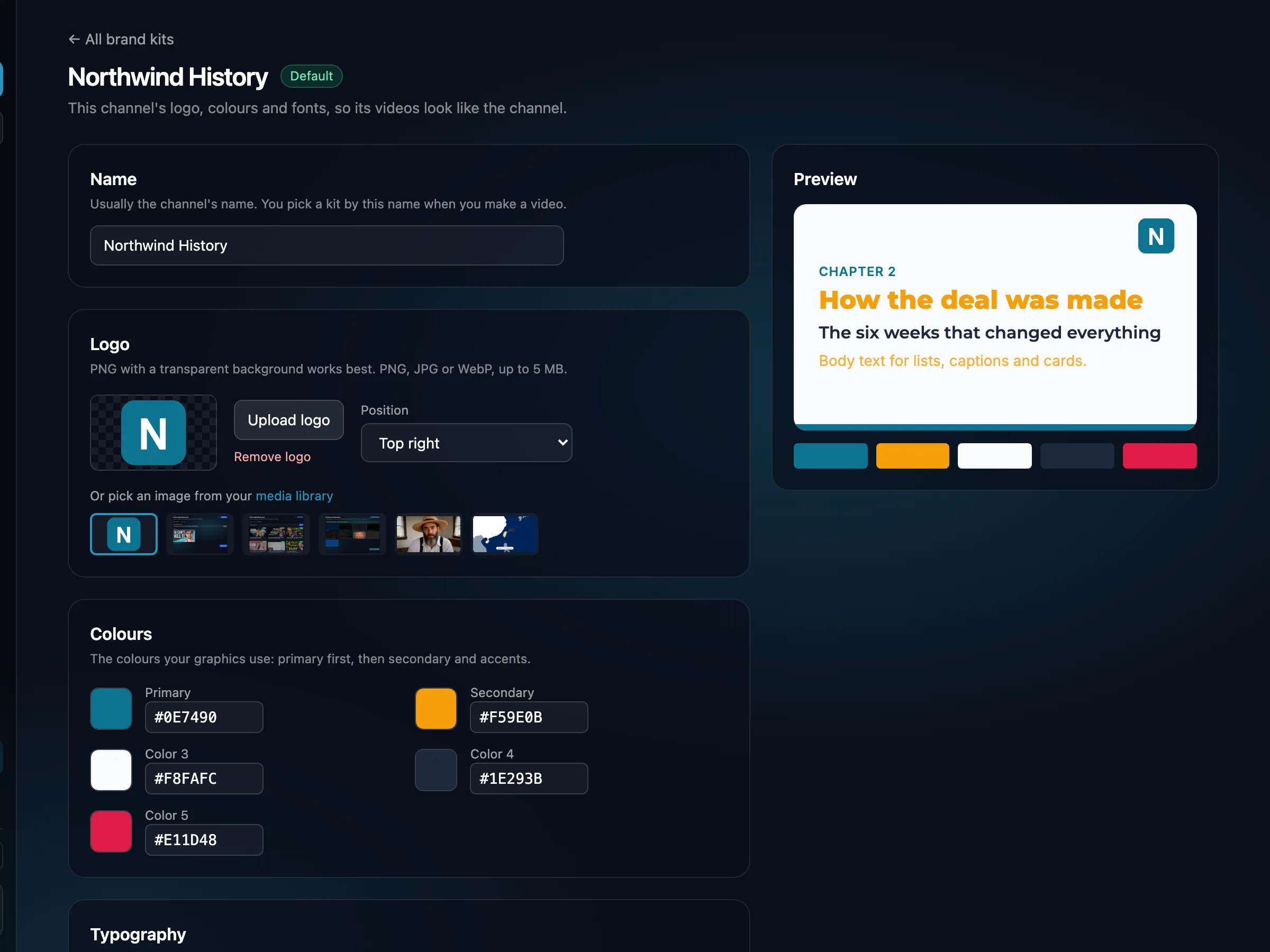
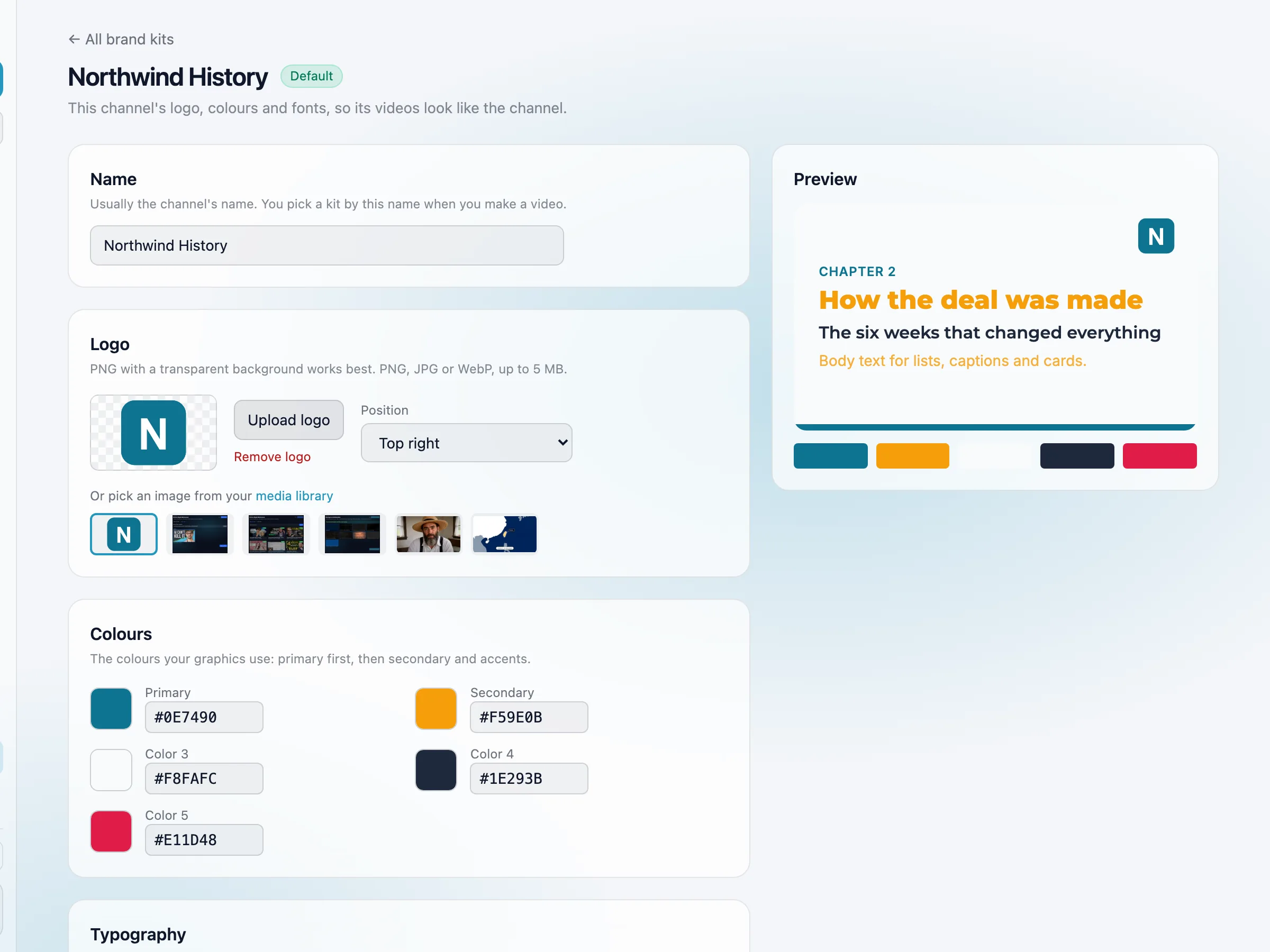
On the Brand Kits page, type the channel's name and press New brand kit. The kit opens with a starting palette and fonts. Set:
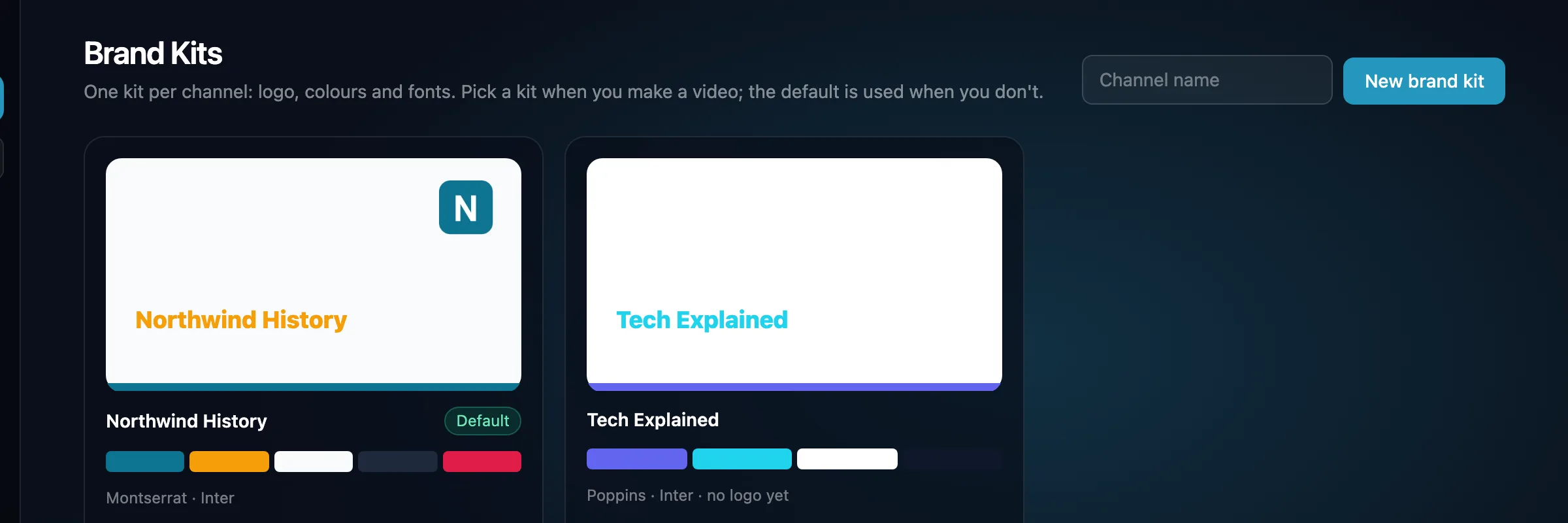
- Logo: upload a PNG, JPG or WebP up to 5 MB (a PNG with a transparent background looks best), or pick an image from your media library. Uploaded logos are kept in the library's Brand folder.
- Logo position: top left, top right, bottom left, bottom right, Let the editor decide (top right, clear of captions and name cards) or Do not show.
- Colours: five colours. The first is your main brand colour; then secondary and accents.
- Typography: a font and weight for titles, subtitles, body text and labels.
The preview on the right shows the logo, colours and fonts together as you change them. You can keep up to 20 kits.
The default kit
One kit is the default; your first kit becomes it. Use Make default on the Brand Kits page, or tick Use this kit when a video doesn't pick one on a kit's page, to change it. Deleting the default makes another kit the default. Deleting a kit never deletes its logo from your media library.
Attach a kit to a template
Open a template from Saved Templates. On the Overview tab, pick the channel's kit under Brand kit; it is saved as soon as you pick. No kit yet? Use New brand kit there: the kit is created, attached to the template, and its page offers Back to the template.
Show the logo in the video is off by default. Turn it on to put the kit's logo on every video made from the template.
What the kit changes in the video
- Colours: a video made from a template with a kit uses the kit's main colour as the accent (date pills, the line under headlines, chart marks) and the kit's first light colour as the headline colour. A dark colour can't be read over footage, so it is used as an accent only.
- Logo: with the switch on, the logo sits in the kit's chosen corner for the whole video, small and slightly see-through. It is its own layer in the editor, so you can move, resize or delete it on one video. The logo is added to Faceless Documentary, Faceless Top 10, Avatar Video, Vector Explainer and agent-planned videos.
- Fonts: the graphics' titles and headlines use the kit's Title font, and their labels, numbers and small text use its Body font. That covers headline cards, charts, maps, rank cards, quote cards, the 3D boards and the motion-graphics Looks. Subtitle and Label are saved for later. Captions keep their own caption style, and a few fonts that are part of a graphic's design stay: maths formulas, chalk handwriting, code and terminal text, the typewriter case card and the split-flap letters. Text in a script the kit's font doesn't cover, such as Arabic or Chinese, keeps the graphic's own font.
- Videos made without a template keep their own colours, so an unused default kit never changes them.
From Claude, ChatGPT and other agents
Over MCP, list_brand_kits lists your kits, and create_brand_kit,
update_brand_kit, set_default_brand_kit and delete_brand_kit
make and change them (the logo as a link or an upload; the CLI has cliptude brand-kit).
create_template and update_template take brand_kit_id
(0 = the default kit), or brand_kit to make a new kit in the same call, and
show_logo; create_job takes brand_kit_id for one video.
Agents ask which channel a template is for and leave the logo off unless you ask.
The REST endpoints are in API, CLI, and MCP.