
Favorites
Most channels come back to the same few narrators, presenters and backdrops. Star them once and they wait for you in a Favorites panel or tab, so you don't have to scroll through hundreds of voices or avatars every time you set up a video. You can star things on three setup steps: voice, avatar and background.
Voices
On the voice step, every voice card has a star. Click it to save the voice; it fills in and the voice is added to Your favorites at the top of the list. Click a filled star to remove the voice again. Picking a voice from the panel selects it, just as picking it from the full list does.
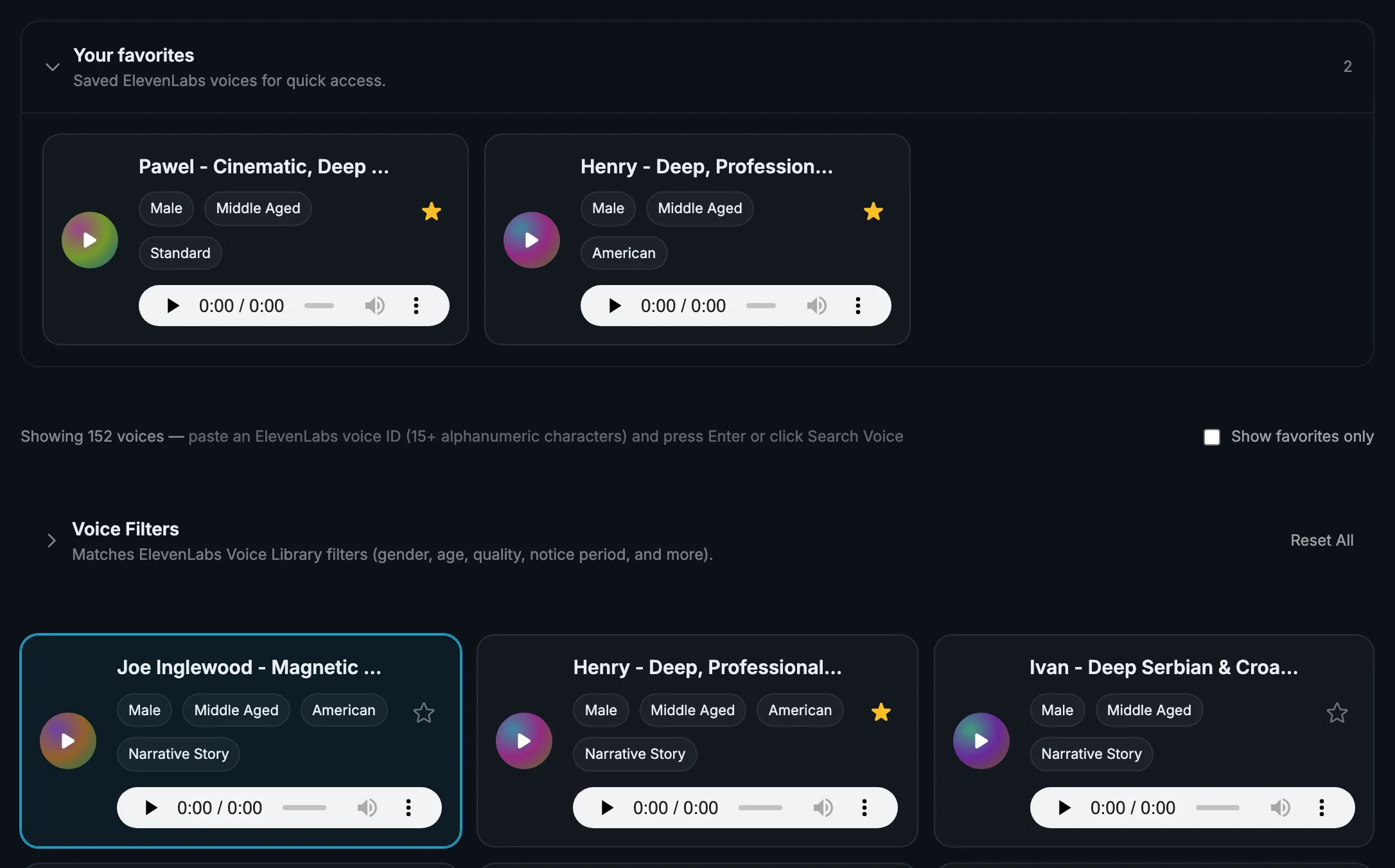
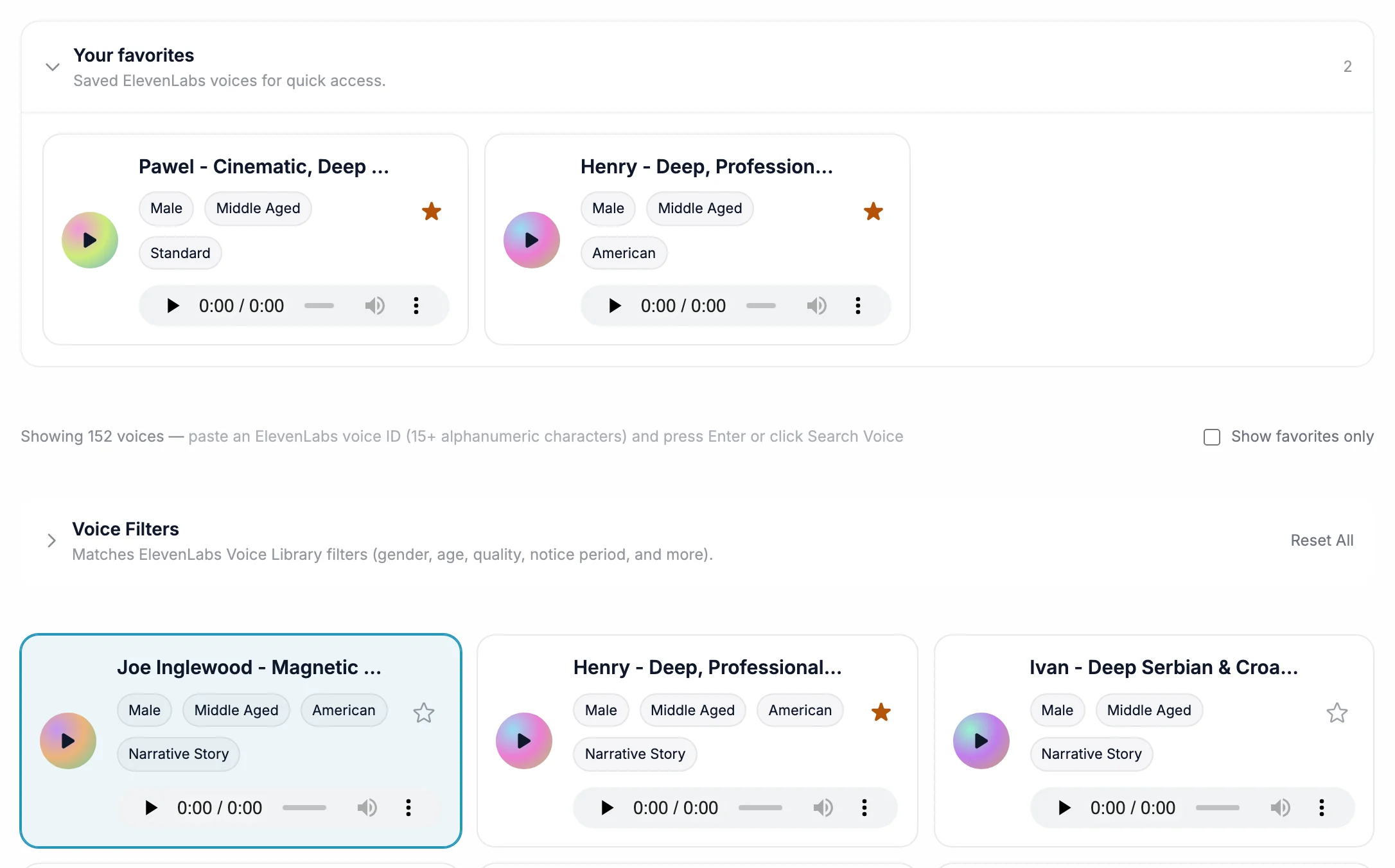
- Your favorites: the voices you've saved for this provider, with a count on the right. On the Voicetory tab the panel is headed Favorites.
- The star: filled for a saved voice, empty for the rest.
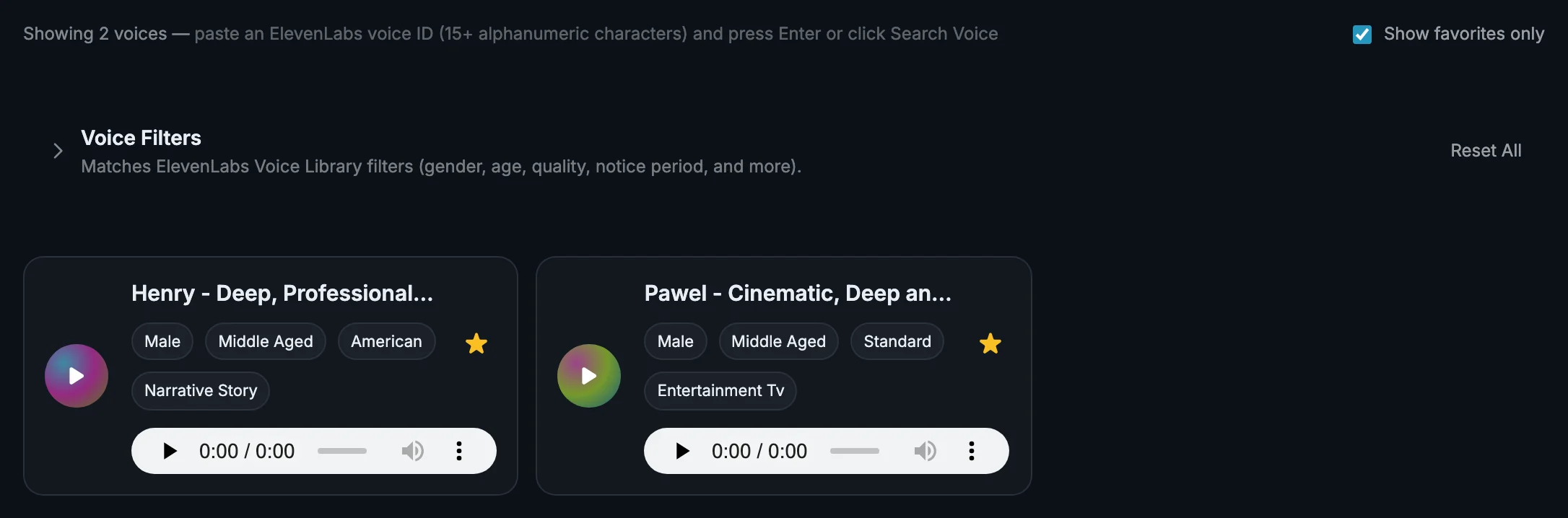
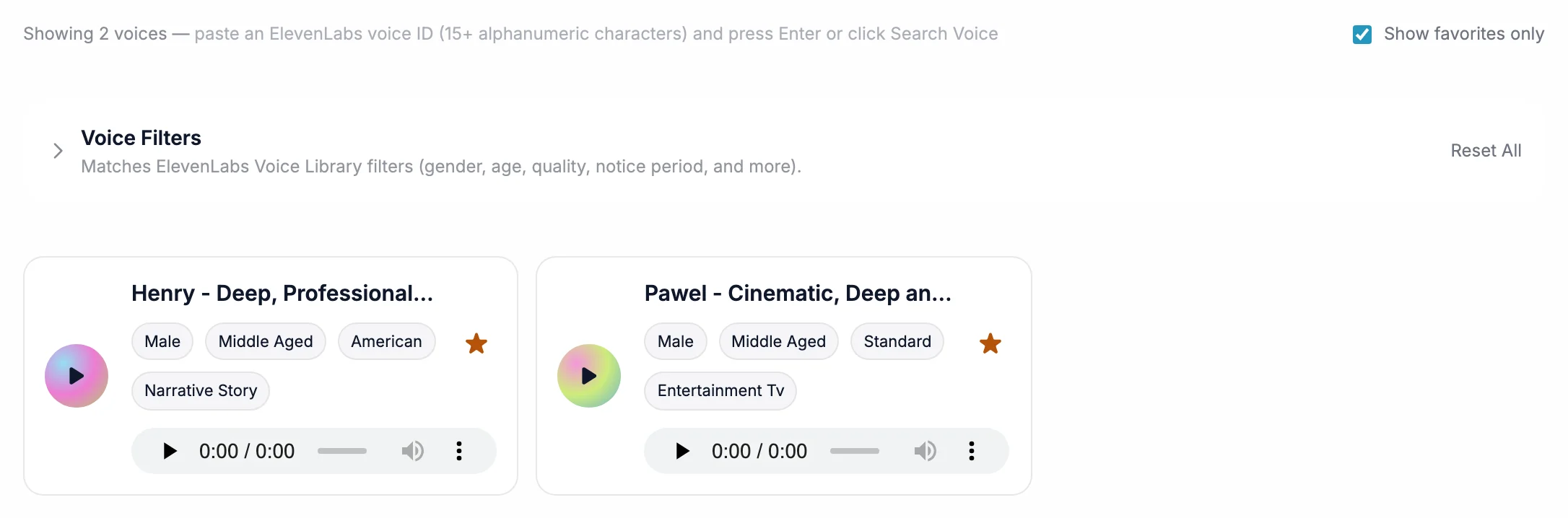
- Show favorites only: hides every voice you haven't starred.
One panel per provider
Each provider under Voice library (Voicetory, ElevenLabs, and MiniMax, Cartesia or Inworld where they're switched on) has its own favorites panel that lists only that provider's saved voices. A Voicetory voice you starred shows on the Voicetory tab, not on the ElevenLabs one. See Voiceover for what each provider offers.
Show only your favorites
Tick Show favorites only above the voice list, or press the Favorites chip in the row of filters at the top of the step (next to Female, Male, American and the rest); the chip simply ticks that box for you. The filter applies to the provider tab you're on, so switch tabs to see another provider's favorites. Press the chip again, or untick the box, to see every voice.
Avatars
On the avatar step of an Avatar Video, each avatar has a star in its top-left corner, on the Built-in tab and on My avatars. Star the ones you use and open the Favorites tab to see them together. The tab has its own search box, and Use picks the avatar for the video.
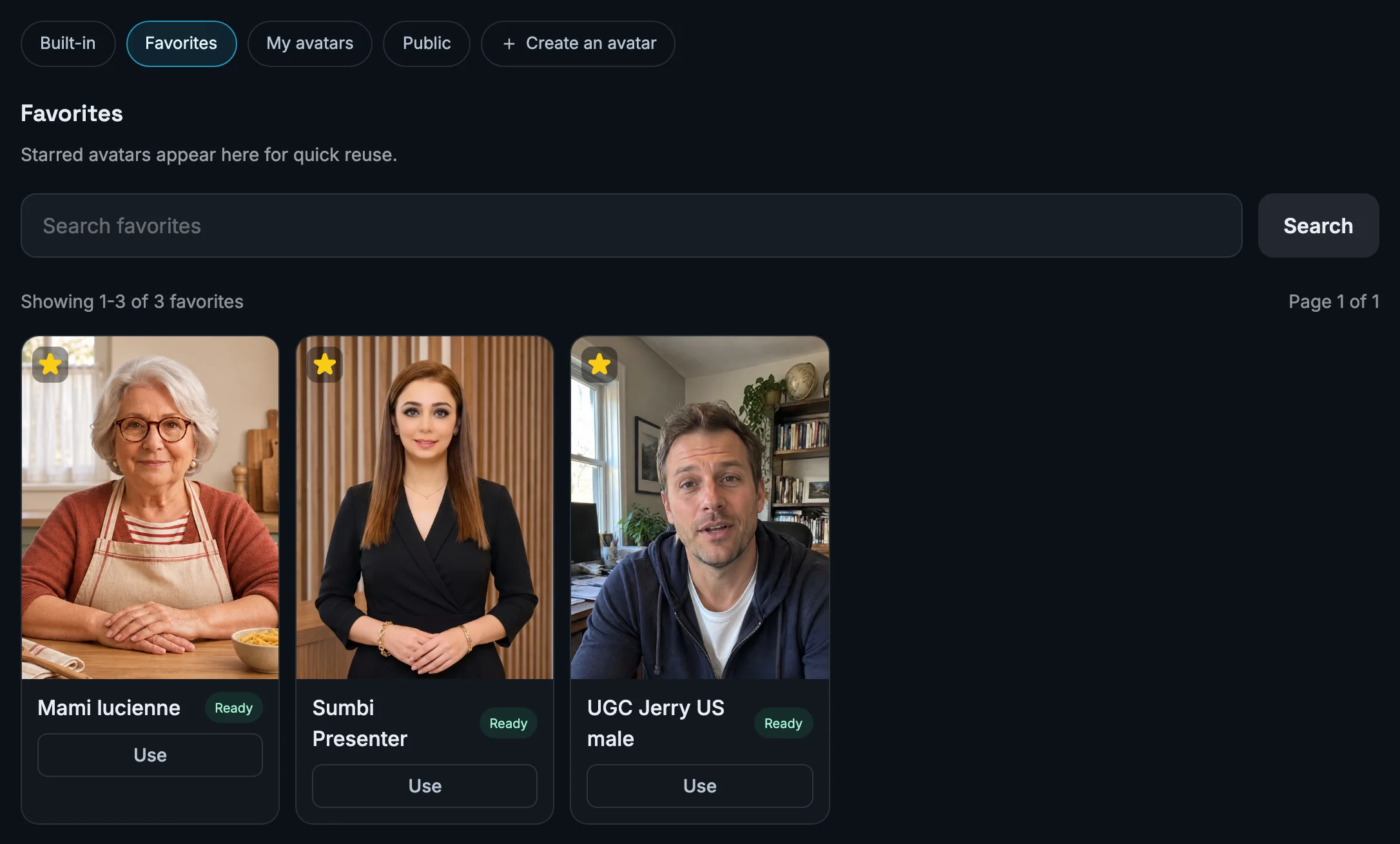
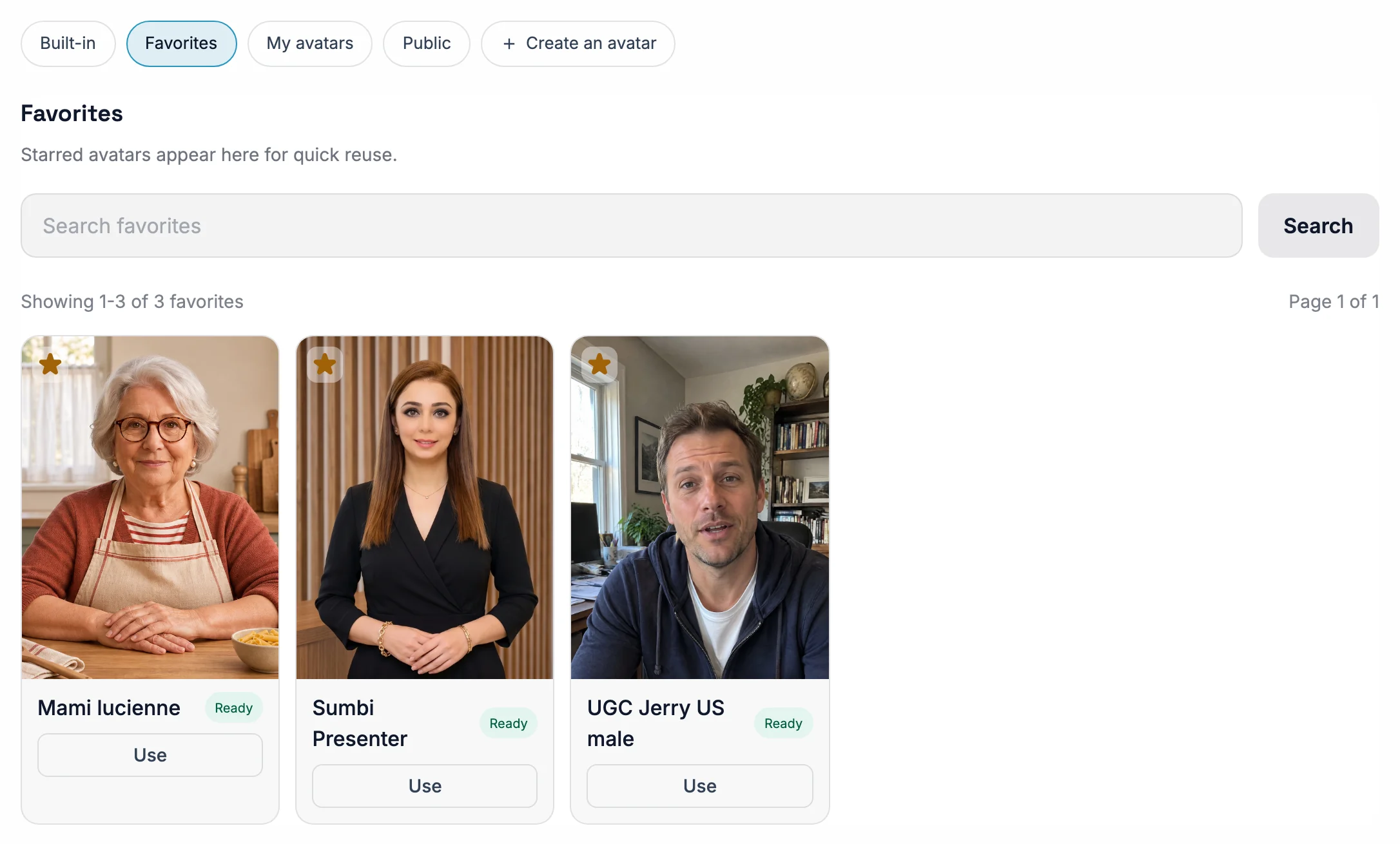
- Favorites tab: every avatar you've starred, built-in or your own.
- The star: click it here, or on any other tab, to remove the avatar from your favorites.
Backgrounds
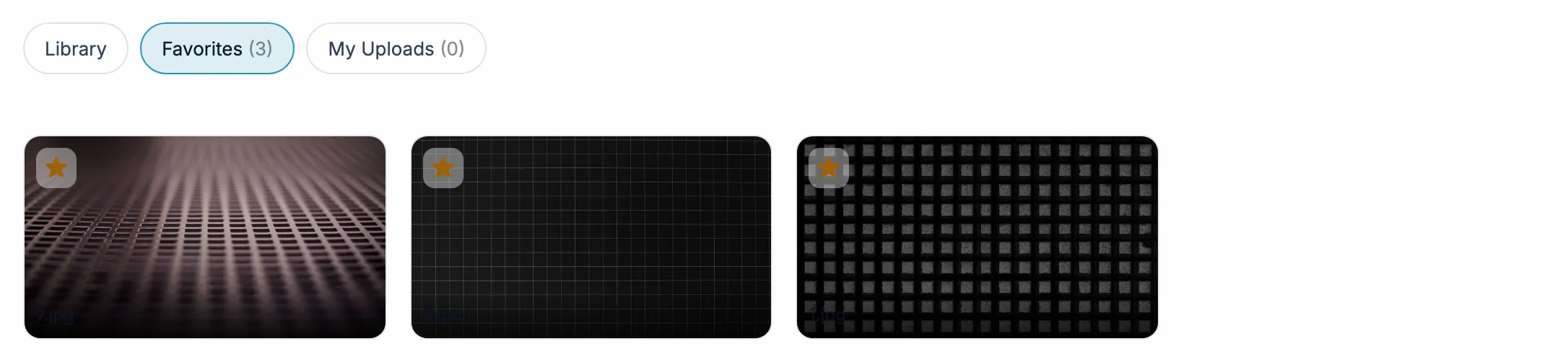
On the background step, star an image in the Library or in My Uploads. The Favorites tab shows how many you've saved, for example Favorites (3), and lists them so you can pick one straight away. Click a filled star to remove it.

Tips
- Saved to your account: favorites stay until you remove them, and follow you to other browsers and devices. Each account has its own; teammates don't see yours.
- Popup and page: the stars, panels and tabs are the same in the create popup's tabs and in the full-page setup wizard. A voice you star in one shows as a favorite in the other.
- Favorites plus templates: a saved template keeps the voice, background and other choices you actually picked, not your favorites list. Star your go-to options, build one template per channel from them, and new videos need only a title and a prompt.