
Cliptude Magma
Cliptude Magma is the third model on the Model tab, next to Cinder and Caldera. Instead of filling your video from a set of ready-made graphics, Magma writes every graphic and transition for your film, scene by scene, in the Look you pick. It also designs a few components of its own for each film, such as a rank card for a Top 10 or a map card for a travel story, so no two films look the same.
Which videos can use Magma
Magma makes these formats:
- → Faceless Documentary
- → Faceless Top 10: the film is built on its countdown, with a rank card designed for your topic.
- → Vector Explainer
- → Talking Head: your recording, with graphics placed around you and never over your face.
- → Avatar Video: your AI presenter, with graphics placed around them.
Three Looks are made only with Magma: Data Desk, Editorial Explainer and Neon Noir. Pick one of them and the video is made with Magma.
Sample films
Six videos in five formats, each made three times from the same script: once with each Magma option. None of them was edited after it was made.
How IKEA Built a Furniture Empire
Faceless Documentary · Empire Story Look
The Fall of Toys R Us: It Wasn't Amazon
Faceless Documentary · Collapse Reel Look
10 Abandoned Cities and Why Everyone Left
Faceless Top 10 · Mega Build Look
What If the Moon Disappeared?
Vector Explainer · Starfield Essay Look
Why Profitable Businesses Still Run Out of Cash
Talking Head · Ledger Desk Look
Buy Now, Pay Later: Why Careful People Get Caught
Avatar Video · Level Playbook Look
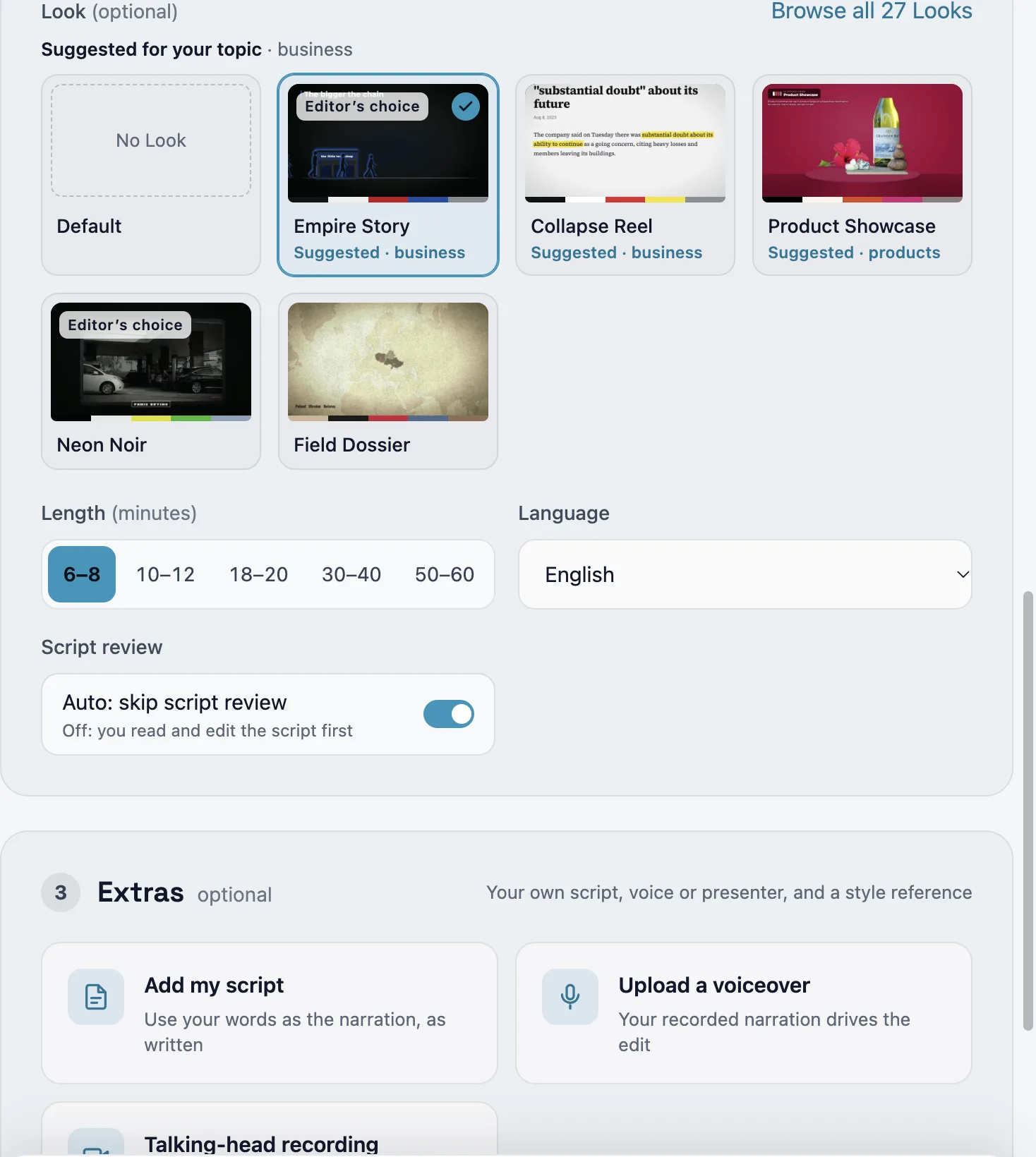
1. Start your video and pick a Look
On Create Video, describe your video, give it a title and pick a format. A Look is optional but worth picking: Magma designs every scene inside it. The page suggests Looks for your topic; Browse all Looks shows the rest. Then click Create Video to open the setup popup.
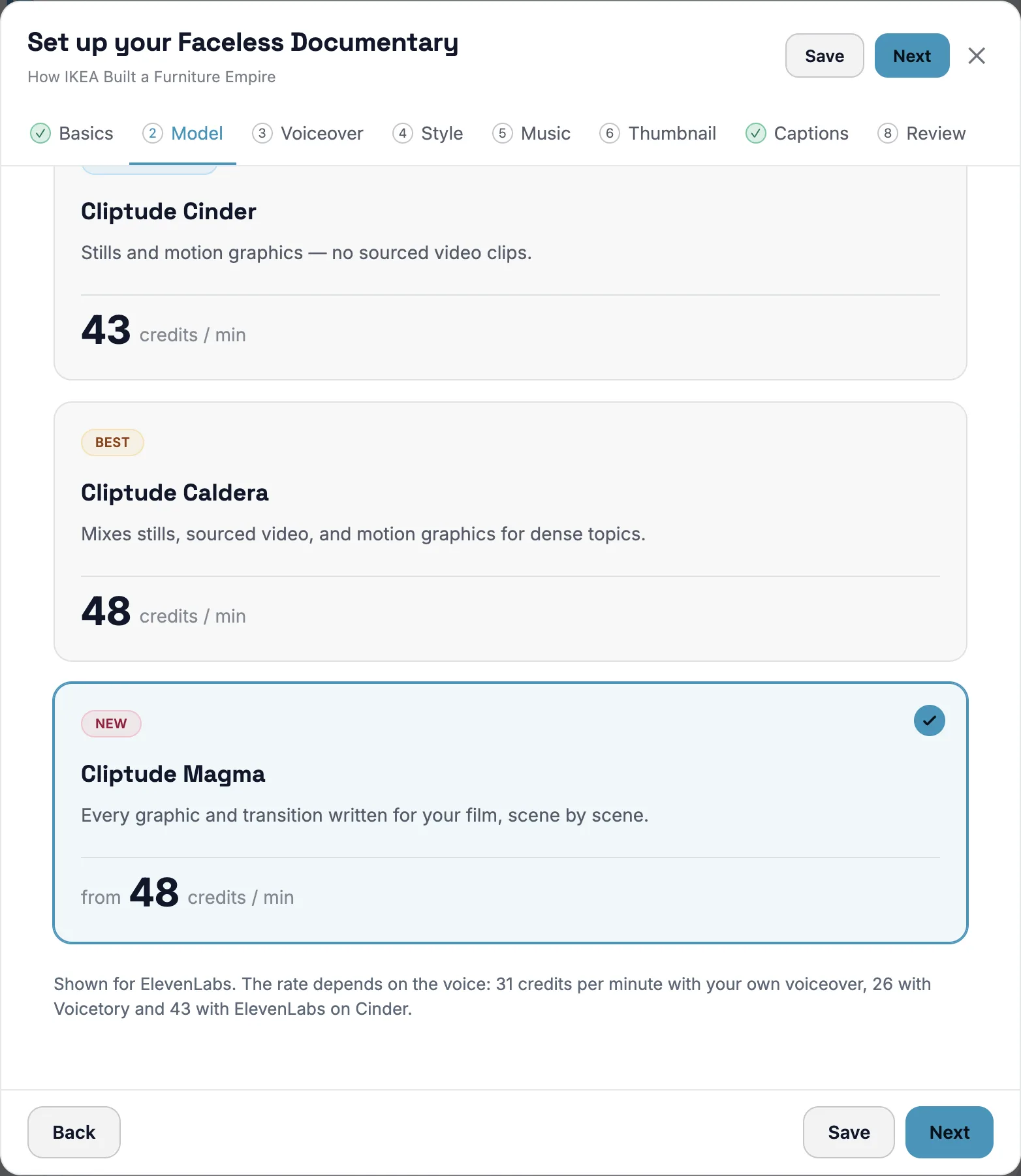
2. Choose Cliptude Magma on the Model tab
After Basics, the Model tab shows Cinder, Caldera and Magma. Click the Cliptude Magma card, then Next.
3. Pick the Magma option
The next screen sets how much craft goes into each scene. Every option uses the same voice, footage and rendering; they differ in how each scene is designed.
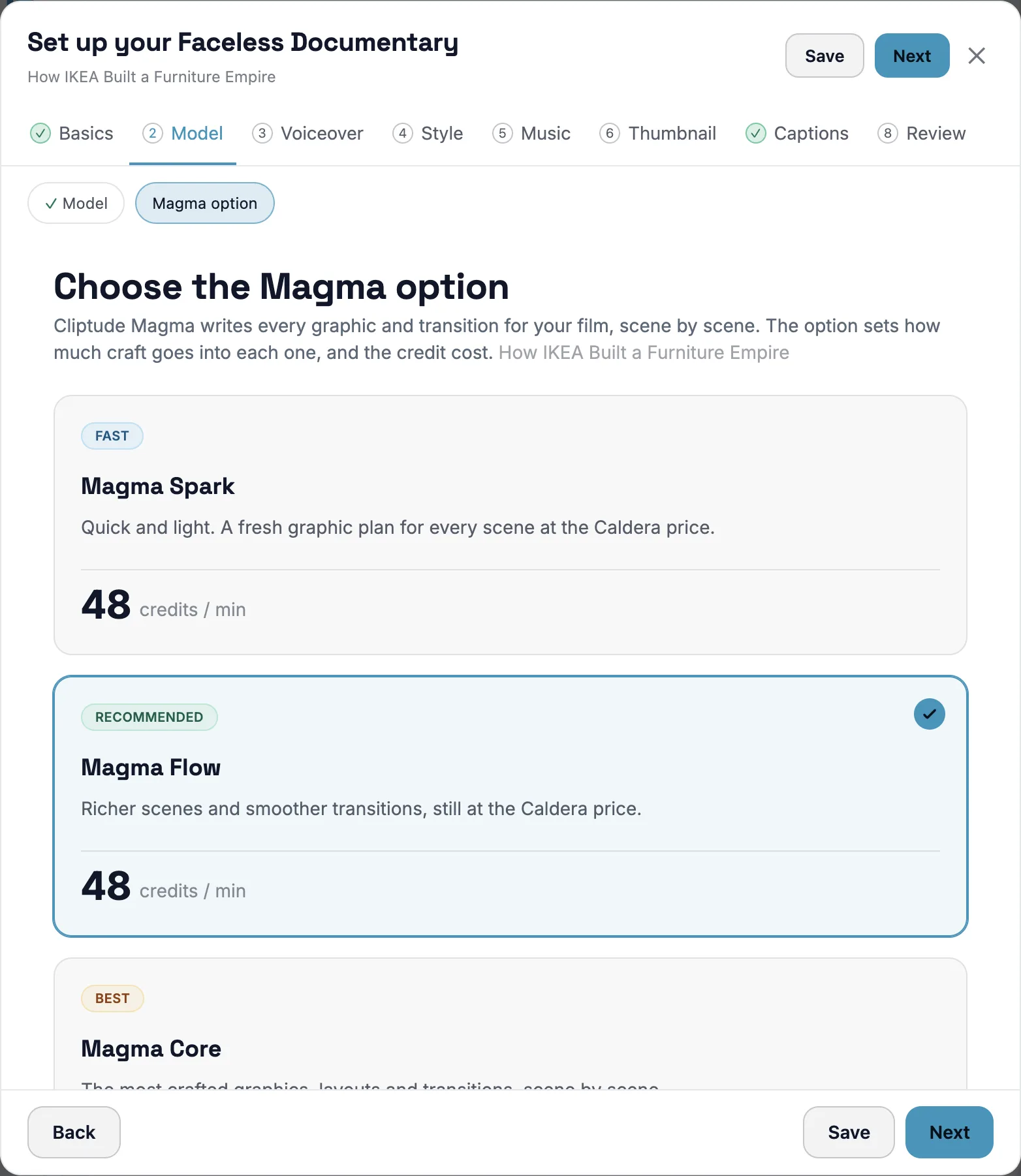
Magma Spark
Quick and light. A fresh graphic plan for every scene. The same price as Caldera.
48 credits / min
Magma Flow
Richer scenes and smoother transitions. Still the Caldera price. Selected for you by default.
48 credits / min
Magma Core
The most crafted graphics, layouts and transitions. 30 credits a minute more than Caldera.
78 credits / min
Magma prices by voice
The rates above are for an ElevenLabs voice. Magma is priced on Caldera, so the rate follows your voice: Spark and Flow cost what Caldera costs, and Core adds 30 credits a minute. For Faceless Documentary and Faceless Top 10:
| Voice | Caldera | Magma Spark | Magma Flow | Magma Core |
|---|---|---|---|---|
| Your own voiceover | 36 | 36 | 36 | 66 |
| Cartesia | 39 | 39 | 39 | 69 |
| ElevenLabs | 48 | 48 | 48 | 78 |
| MiniMax | 52 | 52 | 52 | 82 |
Magma prices by format
Each format adds its own amount to the voice rate, and Core adds 30 credits a minute to every one. With an ElevenLabs voice:
| Format | Caldera | Magma Spark | Magma Flow | Magma Core |
|---|---|---|---|---|
| Faceless Documentary | 48 | 48 | 48 | 78 |
| Faceless Top 10 | 48 | 48 | 48 | 78 |
| Vector Explainer | 65 | 65 | 65 | 95 |
| Avatar Video | 55 | 55 | 55 | 85 |
| Talking Head | 55 | 55 | 55 | 85 |
Talking Head is priced for your recording, so the voice does not change it. Vector Explainer includes its drawn pictures. With another voice the rate moves with the voice, and the setup popup always shows the rate for your voice and format. See Credits.
How many Magma minutes a plan makes
Pick a Magma option, then a plan or a monthly minute target. Faceless Documentary with an ElevenLabs voice.
What does a minute cost?
Drag to a monthly minute target. The panel picks the smallest plan that covers it.
Minutes are the full monthly credit balance spent on that option alone. See Credits System and Pricing & Plans.
4. Finish the setup
The rest of the setup is the same as with any model: Voiceover, Style (your Look and its options), Music, Thumbnail and Captions. You can go back to any tab before you create the video.
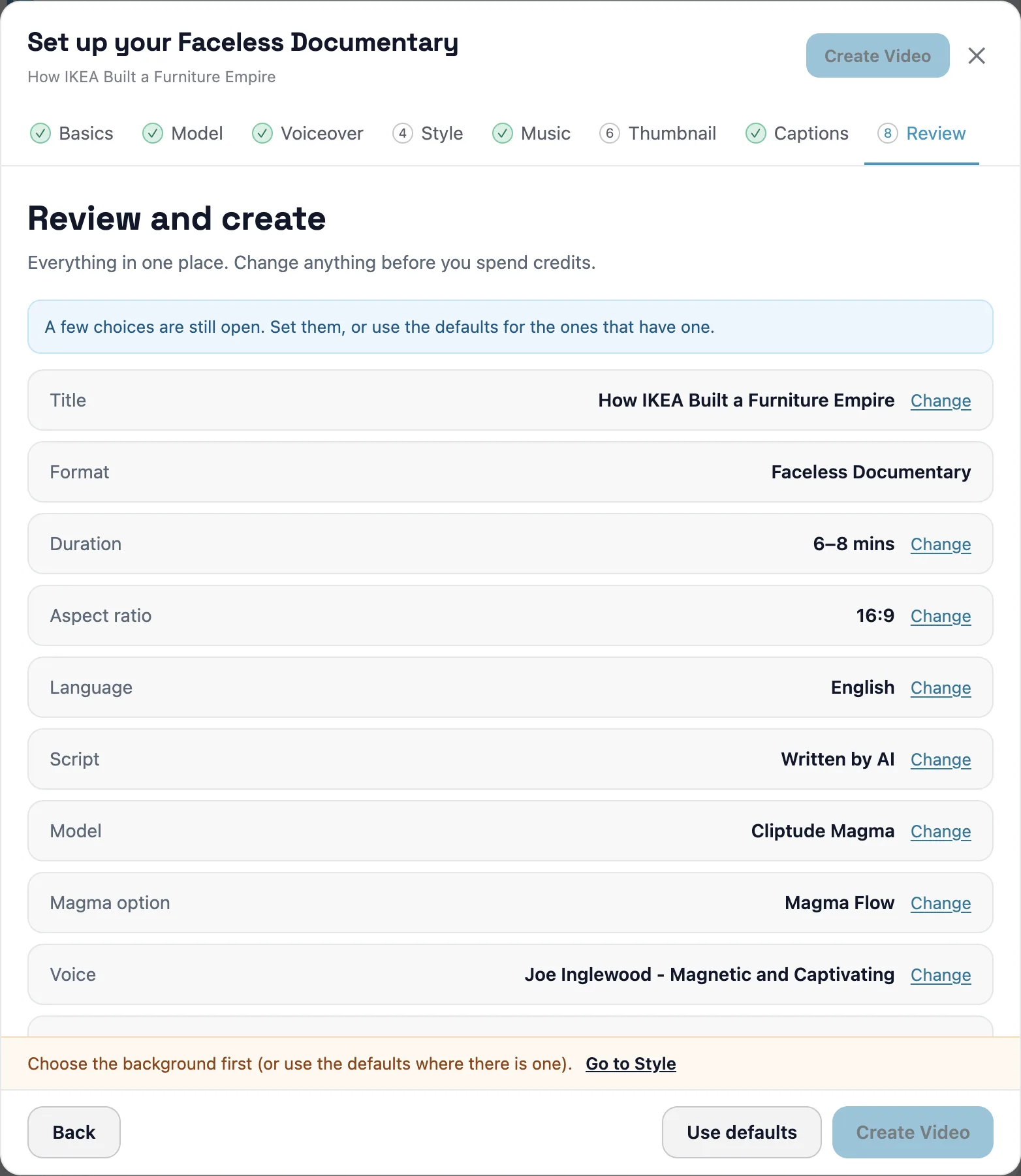
5. Review and create
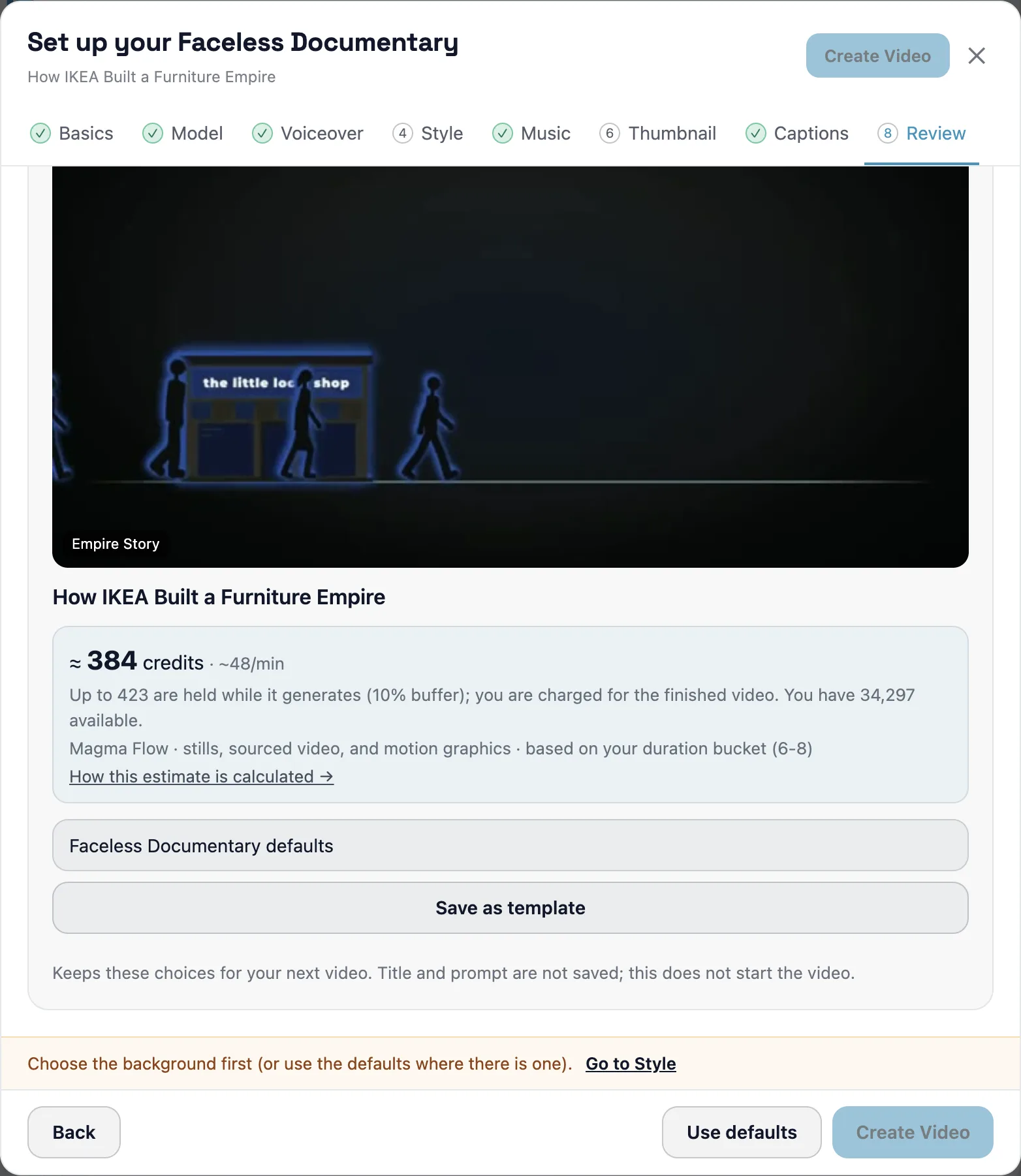
The Review tab lists every choice, with Model: Cliptude Magma and the Magma option you picked. The price box shows the estimate for your length and the credits held while the video is made (the estimate plus a 10% buffer). You are charged for the finished video. Click Create Video to start.
Your directions and @ tags
Magma follows the lines you write in the describe box about what to show ("Open with a map of Bristol", "Show the 2023 sales as a bar chart") and uses the photos and clips you tag with @ on the lines your sentence names. A tagged file is always used: if the plan leaves it out, it goes on the line that best matches your sentence. See @ tags.
Sponsored segments and A-roll clips work the same as on Caldera: tag the clip in a sentence such as "Sponsor: @brand_spot after the intro" or "A-roll: @interview_clip after "they never planned to sell furniture"". The film pauses at the end of that sentence, plays your clip full frame with its own sound (a sponsor between "A word from our sponsor" and "Back to the story" cards), then carries on. The segment is on the editor timeline too, where you can move or remove it.
Your brand
Magma uses your brand kit the same way Caldera does: your first colour becomes the film's accent and your second its data colour, your title and body fonts replace the Look's, and your logo sits in the corner you chose when Show logo is on. When the narration says "subscribe", a subscribe card with your channel name, handle and logo appears for a few seconds. If your kit uses a font a film can't draw yet, the video tells you and uses the Look's font.
After it is made
A Magma film opens in the editor like any video. You can change it there, ask the Cliptude Agent to rework scenes, and export it.
Choosing between Magma and Caldera
- → Pick Magma when you want a film whose graphics are designed for its story, in one consistent style, at the Caldera price with Spark or Flow.
- → Pick Magma Core for the videos where the graphics matter most.
- → Pick Caldera when you want the proven Cliptude look built from its library of graphics.