
API, CLI, and MCP
Configure voice, model, and style once in the Cliptude wizard (or create the template from the API, CLI, or MCP). Save that as a named template. Then an app, the CLI, or Claude sends only a title plus a topic or a custom script.
What this is
Paying users generate videos without walking through the wizard each time. Style stays on the template. Jobs take 10–40 minutes; clients poll until the MP4 exists.
Paying users and credits
- SaaS: an active plan is required. Free accounts get 403 — nothing is queued.
- Not enough credits: 402 with required vs available. No task is created.
- At plan concurrency: 429.
Save a template
Templates are not a built-in catalog. On the web, see the Saved Templates guide to create, edit, and delete them. You can also finish the wizard (voice, model, character, music, thumbnail) — a successful MP4 is not required — then click Save as template in any of these places:
- The Library — overlay on each eligible video
- The Thumbnail page — last wizard step before Generate
- The Progress page — after you start or resume a video
Allowed: Faceless Documentary / Top 10, Vector Explainer, Talking Head, Avatar Video.
On the web create page, pick a saved template, enter a title plus prompt (or script / voiceover), optionally change duration and model tier, then continue to the thumbnail page to set the style reference and see the estimated cost before generating.
On Desktop, Save as template is on the Progress page (and Library when the video is eligible). Desktop New Video does not apply a saved template. You still install the CLI (or use MCP / REST) against localhost — see Desktop.
Create a template without the wizard
REST, CLI, and MCP can also create a ready-to-use template directly from settings. Look up the fields, pick a voice, then create:
cliptude template-options --format faceless_documentary   # every setting, its choices and its default
cliptude voices --provider elevenlabs                     # voice ids (also minimax, cartesia, inworld, voicetory)
cliptude template-create --name "TSMC doc" --format faceless_documentary \
  --set voice_id=<id> --set voice_name=George --set generation_model=pro \
  --set faceless_documentary_style=investigative --set faceless_documentary_primary=#FFFFFF \
  --set faceless_documentary_secondary=#E3B85A
cliptude template-create --name "TSMC doc" --format faceless_documentary --settings-file settings.json
--set KEY=VALUE is repeatable; values are read as JSON when possible (true, 0.4, ["a"]), otherwise as text.
curl -X POST https://cliptude.com/api/v1/templates \
  -H "Authorization: Bearer clp_…" -H "Content-Type: application/json" \
  -d '{"name": "TSMC doc", "format": "faceless_documentary",
       "settings": {"voice_id": "<id>", "voice_name": "George", "generation_model": "pro",
                    "faceless_documentary_style": "investigative"}}'
MCP: get_template_options, list_voices, then create_template. The returned id works in create_job like any saved template.
- Every value gets the same checks as the wizard pages: colours, styles, the background and music libraries, voice ownership, footage sources, and the Cinder stock-video lock (Cinder turns off stock footage and A-roll; use Caldera,
generation_model: "pro", for footage-heavy documentaries). - Anything you leave out gets the wizard default.
- Documentary colours:
faceless_documentary_primaryis the headline text colour drawn over footage (titles, year reveals, boards), so pick a light colour such as white, cream or yellow.faceless_documentary_secondaryis the accent: the line under headlines, pills and chart marks, and is the place for a dark brand colour. A custom primary too dark to read over footage renders as white, and the create response lists this inwarnings.template-optionsdescribes each colour field and lists everyfaceless_documentary_stylepack with its own colours. - Before saving, the template must pass the same readiness check as a wizard save. If a step is missing (usually the voice), nothing is saved and the 400 error names the step. Unknown fields are a 400 too.
- Uploads (custom background music, custom backgrounds by URL), HeyGen avatars, vector characters, and the admin-only coding-model override still need the wizard. Formats that require them return a clear error.
- Optional
thumbnail:{"reference_url": "…"}(a YouTube video link or an https image whose thumbnail style every video copies) or{"custom_prompt": "…"}(a standing brief for people, style and branding; each video still gets its own subject and text). Without it, each job picks a style reference from YouTube for its own title, as the wizard's picker does.create_jobandcreate_plan_jobtake the samethumbnailobject (MCPthumbnail_prompt/thumbnail_reference_url, CLI--thumbnail-prompt/--thumbnail-reference) to override one video.
How voice and model are chosen
In the wizard, or in the settings of an API-created template (above), then frozen on the template. A different voice means a second named template (for example Finance — Rachel). Jobs cannot override the voice.
Prompt vs custom script vs voiceover vs talking head
create_job needs exactly one narration source: prompt, script, an uploaded voiceover file, or a talking-head video. Prompt and script may be sent together (script is voiced; prompt is extra context). A voiceover or talking-head file cannot be combined with prompt, script, or each other.
- prompt — topic or brief. Cliptude web-researches, then writes the narration and generates TTS from the template voice. Template duration is used unless you send
duration. Never copy the video title intoprompt. - script — your narration, same as the wizard custom-script box. Cliptude does not rewrite it. Duration is estimated from word count unless you send
duration. Follow the custom script formatting rules. - voiceover — your audio file (MP3, M4A, WAV, WEBM, OGG, FLAC; max 60 minutes / 200 MB), same as the create-page upload. Cliptude transcribes it and uses that as the script. TTS is skipped. Duration comes from the file. Do not also send
promptorscript. - talking head — presenter video (MP4, MOV, WEBM, AVI; max 60 minutes / 500 MB) on a Talking Head template. Cliptude transcribes it and skips TTS. Duration comes from the file. A talking-head template requires a new clip every job. Do not also send
prompt,script, orvoiceover. - Empty all sources → 400. A Talking Head template without a clip → 400. A talking-head file on any other format → 400. A template with a reference YouTube URL cannot take a custom script or a voiceover → 400.
- Coding agents: if the user only named a topic or title, web-search current facts, write spoken narration (companion skill
cliptude-script), and pass it asscript/--script-file. Do not paste the title asprompt. If they handed you an audio file, passvoiceover_path/--voiceover. If they handed you a presenter recording, passtalking_head_path/--talking-headwith a Talking Head template. - Avatar Video — REST, MCP, and CLI support Avatar Intro Only (
avatar_intro_only) and AI Image + AI Video (avatar_ai_footage). See Avatar Video options. - Motion & effects — Faceless Documentary, Top 10, Talking Head, and Avatar Video templates support disabling animations, overlays, effects, or transitions, plus excluding specific animation types or transitions, per job. See Motion & effects options.
Claude chat — topic
Make a video called “Why index funds beat stock picking” using my Finance vector weekly template. Topic: why most retail traders underperform the S&P over 10 years, keep it for beginners.The title is not the prompt. Agents web-search, write a spoken script, then pass script. Pass prompt only as a researched brief when the user wants Cliptude to write the voiceover.
Claude chat — custom script
Use my Finance vector weekly template. Title: Why index funds beat stock picking. Use this script exactly:

Most people think picking stocks is how you get rich. Over ten years, the opposite is usually true…
Claude must pass that text as script, not prompt.
REST
{
  "template_id": "uuid",
  "title": "Why index funds beat stock picking",
  "prompt": "why most retail traders underperform the S&P over 10 years",
  "duration": "6-8"
}
{
"template_id": "uuid",
"title": "Why index funds beat stock picking",
"script": "Most people think picking stocks is how you get rich…"
}Avatar Video: optional avatar_intro_only and avatar_ai_footage on the same JSON body — see Avatar Video options.
Voiceover upload is multipart (not JSON), field name voiceover (or voice_file):
curl -X POST https://cliptude.com/api/v1/jobs \
  -H "Authorization: Bearer clp_…" \
  -F "template_id=uuid" \
  -F "title=Why index funds beat stock picking" \
  -F "[email protected]"
Talking Head: prefer direct-to-R2 (POST /api/v1/uploads/talking-head/init, sign-parts, complete) then JSON with talking_head_r2_key and talking_head_duration. Small files or no R2 can POST multipart field talking_head (or talking_head_file):
curl -X POST https://cliptude.com/api/v1/jobs \
  -H "Authorization: Bearer clp_…" \
  -F "template_id=uuid" \
  -F "title=Weekly recap" \
  -F "[email protected]"
CLI
Set up Cliptude so you can generate videos from a terminal or coding agent. Prefer --script-file after research. The --prompt examples below are briefs, not titles.
- Install the CLI:
npm i -g @cliptude/cli - Authenticate — complete the sign-in in the browser it opens:
cliptude auth login - Install the companion skills:
npx skills add cliptude/cliptude
cliptude generate --template "Finance vector weekly" --title "Why index funds win" --prompt "why most retail traders underperform the S&P over 10 years, keep it for beginners" --duration 6-8
cliptude generate --template "Finance vector weekly" --title "Why index funds win" --script-file script.txt
cliptude generate --template "Finance vector weekly" --title "Why index funds win" --voiceover narration.mp3
cliptude generate --template "My talking head" --title "Weekly recap" --talking-head clip.mp4
cliptude generate --template "My avatar weekly" --title "Grandma egg trick" --script-file script.txt --avatar-ai-footage --avatar-intro-only
API keys
Create a clp_… key at /developers/. Send Authorization: Bearer clp_… on every call. Never commit keys.
REST
Base https://cliptude.com or Desktop http://127.0.0.1:<port> from desktop-runtime.json.
GET /api/v1/templatesGET /api/v1/templates/{id}POST /api/v1/templates{"video_id","name"}(snapshot a wizard video) or{"name","format","settings"}(no wizard)GET /api/v1/vector-characters(Vector Explainer built-in cast and your uploads),POST /api/v1/vector-characters(multipartimageor JSONimage_url, plusname; returns theidforvector_character_idon a template or job),DELETE /api/v1/vector-characters/<id>GET /api/v1/templates/options?format=…GET /api/v1/voices?provider=…&language=…GET /api/v1/avatars?section=mine|builtin|public|favorites&search=…&gender=male|female(Avatar Video avatars; send anidasavatar_profile_idin templatesettings, or onPOST /api/v1/jobswith optionalavatar_engineto override the template)PATCH /api/v1/templates/{id}{"name"}(optionalvideo_idto resnapshot)DELETE /api/v1/templates/{id}POST /api/v1/jobs(JSON:promptand/orscript, optionaloutputofvideo/script/voiceover; Avatar Video may sendavatar_intro_only/avatar_ai_footage; ortalking_head_r2_key; or multipart withvoiceover/talking_headfile) then pollGET /api/v1/jobs/{id}POST /api/v1/jobs/estimate(same JSON asPOST /api/v1/jobs, notitle; give an upload's length asvoiceover_seconds/talking_head_seconds). Returnscredits_required,credits_estimate,credits_per_minute,estimated_seconds,voice_source,narration_credits(plan jobs),credits_availableandenough_credits. Creates and charges nothing.POST /api/v1/uploads/talking-head/initsign-partscompleteabort(direct-to-R2 talking-head upload)GET /api/v1/jobsPOST /api/v1/jobs/{id}/cancelPOST /api/v1/jobs/{id}/continue(completed script or voiceover job → full video, same id)GET /api/v1/jobs/{id}/voiceover(TTS-only jobs — redirect or MP3 file)GET /api/v1/jobs/{id}/narrationGET /api/v1/catalog/kindsPUT /api/v1/jobs/{id}/plan(?dry_run=1to check)GET /api/v1/jobs/{id}/planGET …/plan/reviewGET …/plan/report(agent-planned videos)GET /api/v1/jobs/{id}/editor-projectGET /api/v1/editor-projects/{id}(?design=1for the full design JSON)POST /api/v1/editor-projects/{id}/agent/runsGET …/agent/runs/{run_id}POST …/agent/runs/{run_id}/cancelGET|POST …/agent/chatsGET /api/v1/agent/tiers(Cliptude Agent)POST /api/v1/editor-projects/{id}/renderGET /api/v1/editor-renders/{id}GET /api/v1/accountGET /api/v1/meta
SaaS output is output.url (R2). Desktop output is output.path (local MP4 or local voiceover file).
Script-only and voiceover-only
The same POST /api/v1/jobs contract can stop after a script or after TTS. Send output: video (default), script, or voiceover. Still requires a saved template. Talking Head templates cannot use script or voiceover jobs. Do not upload a voiceover or talking-head file with these modes.
- script — requires
prompt(not a customscript). Cliptude researches and writes narration. Poll untilcompleted, then readscriptonGET /api/v1/jobs/{id}(not on the list endpoint). Charges the script-preview fee on success (minimum 10 credits). - voiceover — requires
promptorscript. Uses the template voice. Poll untilcompleted, then readvoiceover.url(and duration) orGET /api/v1/jobs/{id}/voiceover. Charges the narration per minute by voice (18 credits/min with ElevenLabs, 10 MiniMax, 6 Cartesia, 4 Voicetory or Inworld, 0 on your own ElevenLabs key) plus the script if Cliptude wrote it. Continuing it into a video charges only the rest, so the total equals the website price. The template must have a voice. - These jobs do not count against video concurrency. They do not assemble an MP4. When you want the video,
POST /api/v1/jobs/{id}/continue(CLIcliptude continue, MCPcontinue_job) on the same job afterstatusiscompletedandcan_continueis true. That reserves full-video credits, reuses the script (and the TTS file for voiceover jobs), and queues the MP4. Script and voiceover fees already charged are not refunded. Talking Head cannot start as partial jobs, so they cannot continue this way either.
{
  "template_id": "uuid",
  "title": "Why index funds beat stock picking",
  "prompt": "why most retail traders underperform the S&P over 10 years",
  "duration": "6-8",
  "output": "script"
}
cliptude script --template "Finance vector weekly" --title "Why index funds win" --prompt "why most retail traders underperform the S&P" --duration 6-8
cliptude voiceover --template "Finance vector weekly" --title "Why index funds win" --script-file script.txt
cliptude download-voiceover <job-id> --out narration.mp3
cliptude continue <job-id>MCP: create_script, create_voiceover, and continue_job. Leave create_job for full videos that start as an MP4.
Agent-planned videos: your agent directs every shot
On Faceless Documentary, Faceless Top 10, Avatar Video and Vector Explainer templates, your agent can plan every visual itself and leave Cliptude only the voicing, sourcing and rendering. The plan sets the look (theme, style, colours, music, sound effects on or off), the footage or picture under every stretch of narration (a search query, a person, or a URL), every motion graphic with its text, data, timing, colours and sound, the transition on each cut, two-image reveals, and free sound effects. Cliptude renders exactly the plan you lock. On Vector Explainer, every picture is drawn as vector art from the plan's description instead of searched, and boards that show photos are not available.
- Create a plan job.
POST /api/v1/jobswith"output": "plan"and aprompt, ascript, or a voiceover file (create_plan_job/cliptude plan-job). Cliptude writes (if needed) and records the narration, then stops atstatusplan_ready. You need the full website price in credits, but only the narration is charged now. Plans expire after 14 days. - Read the narration.
GET /api/v1/jobs/{id}/narration(get_narration): numbered sentences with word timings, thenarration_digestyour plan must carry, suggested chapters, the template's settings, and the price. - Choose graphics.
GET /api/v1/catalog/kinds?compact=1(get_kind_catalog) lists every graphic in one line each, plus every transition, two-image reveal style and sound effect (with preview links).?types=a,breturns full entries: the props a graphic draws (with examples), its picture slots and hold times.?premium=1lists only the premium boards, the newest designs, each with its own timed sound cues. - Write and check the plan.
PUT /api/v1/jobs/{id}/plan?dry_run=1(check_plan/cliptude plan-check) returns errors (fix them), warnings and a pacing scorecard (advice), and the cost. Checks are free and use no AI. Repeat untilvalid. - Lock and produce.
PUT /api/v1/jobs/{id}/planwithoutdry_runlocks it (lock_plan), thenPOST /api/v1/jobs/{id}/continue(continue_job). Poll untilstatusisready_for_edit: Cliptude has sourced and built the video, and the job is charged here, once. Nothing is rendered yet. - Review the build.
GET /api/v1/jobs/{id}/plan/review(get_plan_review/cliptude plan-review) lists every picture or clip in order, with the sentence under it, what you asked for, what was used and a link to the file, and every graphic with the props it will be drawn with, or why it is missing.GET …/plan/report(get_plan_report) adds each media request's fallback. Look at the media: a search can return a wrong picture that still counts as found. - Revise on the same job. Check and lock a revised plan on the same job, then
continueagain. The narration and its digest do not change, every picture or clip whose request did not change is reused, and nothing more is charged. Repeat review and revise as needed. - Render once.
open_editor_project/cliptude editor <job-id>, thenrender_project/cliptude render <project-id> --waitfor the final MP4.
cliptude plan-job --template "TSMC doc" --title "The island" --script-file script.txt
cliptude narration <job-id> > narration.json
cliptude catalog --format faceless_documentary --compact
cliptude catalog --types multi_pie_chart,comparison_bar_chart
cliptude plan-check <job-id> plan.json      # repeat until valid
cliptude plan-lock <job-id> plan.json && cliptude continue <job-id>
cliptude plan-review <job-id>               # the build, beat by beat and graphic by graphic
cliptude plan-lock <job-id> plan_v2.json && cliptude continue <job-id>   # optional revision
cliptude editor <job-id> && cliptude render <project-id> --wait- What the plan can set.
look(the template fields for theme, style, colours, music, sound effects and transitions; the voice is fixed once recorded);beats(footage per stretch of narration:querywith alternates and exclusions,person, orurl, plus an optionalintent: one sentence describing the picture (subject, what is visible, era, place) that the media library is searched with by meaning, and anera; camera move, film treatment,transition_in,reveal_next);graphics(a graphic kind or exact type, the sentence and phrase it lands on, duration, props, per-graphic colours, picture slots,soundandvolume);sfx;chapters; Top 10ranked_items; Avatarpresenter_windows. - Premium boards draw the data in their own props (for example
pie1Value,firstBarValue,firstStepText). Fill those, not just a headline; the check refuses a data board without its data. - Pictures of people. Cliptude never invents a face for a real person. If no portrait passes its check, a person board is dropped and the review says so; give a portrait
urlfor anyone less well known. - Pricing. The total equals the website price for the same video: the narration at
plan_ready, the rest atready_for_edit. Revisions on the same job cost nothing more; editor renders are charged like any editor render. - MCP:
create_plan_job,get_narration,get_kind_catalog,check_plan,lock_plan,get_plan,continue_job,get_plan_review,get_plan_report. The full schema and rules are in the MCP'scliptude-planskill. Not available in the desktop app yet.
Product videos from a store
Turn a store product into a 6 to 60 minute educational video: about 80% teaching, then the product, with its real photos composited into the closing boards. A product URL from your own Shopify store works without setup; stores on other platforms work through the page's structured data; stores connected at /integrations/stores/ can also be searched.
POST /api/v1/commerce/products/fetch{"url_or_query": "https://store.com/products/handle"}(or a search term withstore_domain) returnsproduct_id, the product and 3 educationalangles. MCPfetch_product_context, CLIcliptude product fetch.POST /api/v1/commerce/scripts{"product_id", "angle": 0, "duration": "10-12", "discount_code"?, "cta_url"?, "template_id"?}queues the script and returnsscript_id(the job id). MCPdraft_product_script.GET /api/v1/commerce/videos/{id}returnsstage(script_drafting,script_ready,producing,ready_for_review,rendered,failed), the script,editor_url,output.urlandnext_step. MCPget_product_video_status.POST /api/v1/commerce/videos/{id}/render{"aspect_ratio": "16:9"}produces the video on the same job and returns at once. MCPrender_product_video. Review it in the editor, then render the MP4 as usual.
Let your agent review, edit, and render with Cliptude Agent
Your own agent (Claude, Codex, Cursor, a script) can finish a video end to end: generate it, watch it, fix what it does not like with Cliptude Agent, and render the final MP4 once it decides the video is good. No one has to open the editor.
- Generate.
create_job/cliptude generate, then poll untilcompleted. The first MP4 is atoutput.url. - Review. Download the MP4 and look at it: sample frames (for example one every 10 seconds with ffmpeg) for a vision model, or listen to the narration. Compare it with the script.
- Open the timeline.
open_editor_project/cliptude editor <job-id>returns the project id, itsrevision, and every timeline item as{id, type, start_s, end_s, text}. Match each problem to the items at that timestamp. - Edit. One focused request per run, with the item ids:
run_agent/cliptude agent <project-id> --prompt "…" --items <ids> --wait. Read the run's messages:completedmeans the edit was applied,failedorconflictmeans try again or rephrase. - Check, then repeat. To see the edits, render a draft (
render_project) and review it like step 2. Keep going until the agent is satisfied. - Render the final.
render_project/cliptude render <project-id> --wait, then useoutput_url. The original job MP4 is not changed.
cliptude status <job-id>                   # output.url = first cut
cliptude editor <job-id>                   # project id, revision, timeline: [{id, type, start_s, end_s, text}]
cliptude agent <project-id> --prompt "Replace this shot with real footage of a TSMC fab" --items clip-1 --tier smart --wait
cliptude agent <project-id> --prompt "Lower the background music under the narration" --wait
cliptude render <project-id> --wait        # output_url = new MP4 with the edits
Tell your agent the bar it should hold the video to (accuracy, pacing, footage that matches each line) and a limit on rounds or credits, so it knows when to stop and render.
- Reference timeline items with
--items/referenced_item_ids(ids from the timeline listing). The agent can swap footage, regenerate images or a voiceover range, change music, sound effects, backgrounds, transitions, and on-screen text. - One run at a time per project. A run applies its edits and bumps the project
revision; the CLI and MCP send the current revision for you. A stale revision → 409. - Tiers:
fastandsmart(cliptude agent-tiers). Agent runs and renders are charged in credits like the editor; not enough credits → 402. - MCP:
open_editor_project,get_editor_project,run_agent,get_agent_run,cancel_agent_run,render_project,get_render.
curl -X POST https://cliptude.com/api/v1/editor-projects/<project-id>/agent/runs \
  -H "Authorization: Bearer clp_…" -H "Content-Type: application/json" \
  -d '{"prompt": "Replace this shot with real footage of a TSMC fab", "tier": "smart",
       "referenced_item_ids": ["clip-1"], "expected_revision": 7, "idempotency_key": "note-1"}'
The tools
Same on REST, CLI, and MCP: list_templates, get_template, get_template_options, list_voices, list_avatars, create_template, estimate_credits, open_editor_project, run_agent, render_project, create_job, create_script, create_voiceover, continue_job, create_plan_job, get_narration, get_kind_catalog, check_plan, lock_plan, get_plan, get_plan_review, get_plan_report, get_job, list_jobs, cancel_job, get_account, fetch_product_context, draft_product_script, render_product_video, get_product_video_status. Avatar Video jobs accept avatar_intro_only and avatar_ai_footage (see Avatar Video options). create_job accepts voiceover_path or talking_head_path on CLI/MCP (local files, same as create.html). Remote MCP hosts should use the CLI for file uploads.
On the web, open Saved Templates and click Edit to change voice, style, duration, and thumbnail in place. The template id stays the same, so existing API and Claude jobs keep working.
Not exposed: individual wizard steps, editing an existing template's settings (create a new one instead), direct timeline JSON edits (use Cliptude Agent), billing.
Connect the MCP
Cliptude speaks Streamable HTTP at a public URL. Any MCP client that can reach a remote /mcp endpoint can use the same tools and credit gates as the REST API.
- URL:
https://mcp.cliptude.com/mcp - Auth (preferred): OAuth. Sign in with your Cliptude Google account when the host opens a browser. Revoke that host at /developers/.
- Auth (headless): create a
clp_…key at /developers/ and sendAuthorization: Bearer clp_…. Never commit the key. - You need an active paid plan and enough credits, same as the website.
- After tools appear, say: List my Cliptude templates, then make a video called “…” using template … Topic: …
Jump to a host: Claude · Codex · Cursor · Hermes Agent · Grok · OpenClaw · ChatGPT, VS Code, Windsurf, and others
Claude (claude.ai, Desktop, Claude Code)
Remote HTTP + OAuth. You do not need an API key for this path.
claude.ai / Claude Desktop
- Open claude.ai (or Claude Desktop) and sign in.
- Go to Customize → Connectors. Custom connectors work on Free, Pro, Max, Team and Enterprise plans; Free allows one custom connector. Team/Enterprise: an Owner adds it under Organization settings → Connectors first.
- Click + → Add custom connector.
- Name it
Cliptude. URL:https://mcp.cliptude.com/mcp. Leave Client ID / secret blank (dynamic registration). - Click Add, then Connect. Sign in to Cliptude and approve access.
- Start a new chat. Enable the Cliptude connector if the host asks, then list templates or create a job.
Claude Code
- Install Claude Code and open a terminal in any project.
- Add the remote server:
claude mcp add --transport http cliptude https://mcp.cliptude.com/mcp - In a Claude Code session, run
/mcp. Select cliptude and complete the browser OAuth login. - Confirm with:
You should see cliptude connected, then ask it to list templates.claude mcp list
Stdio fallback (API key instead of OAuth): create a clp_… key, then:
export CLIPTUDE_API_KEY='clp_…'
export CLIPTUDE_BASE_URL=https://cliptude.com
claude mcp add --transport stdio cliptude \
  --env CLIPTUDE_API_KEY --env CLIPTUDE_BASE_URL \
  -- uvx cliptude-mcp
Codex (CLI, IDE, ChatGPT desktop)
Codex stores MCP in TOML at ~/.codex/config.toml (or project .codex/config.toml). HTTP + OAuth is the default.
- Install the Codex CLI / IDE extension.
- Register the server, then log in:
codex mcp add cliptude --url https://mcp.cliptude.com/mcp codex mcp login cliptude - Complete the browser sign-in. Check with:
codex mcp list - Start Codex and ask it to list your Cliptude templates.
Equivalent ~/.codex/config.toml (OAuth):
[mcp_servers.cliptude]
url = "https://mcp.cliptude.com/mcp"
Headless / CI (Bearer key, no browser):
[mcp_servers.cliptude]
url = "https://mcp.cliptude.com/mcp"
bearer_token_env_var = "CLIPTUDE_API_KEY"
Export CLIPTUDE_API_KEY in the environment. Do not paste the key into the TOML file.
Cursor
Prefer the remote URL. Cursor runs OAuth when you click Connect.
- Open Cursor Settings → Tools & MCP (or Customize → MCP).
- Click New MCP Server, or create
~/.cursor/mcp.json(all projects) or.cursor/mcp.json(this repo only). - Add:
{ "mcpServers": { "cliptude": { "url": "https://mcp.cliptude.com/mcp" } } } - Save. In Tools & MCP, click Connect next to cliptude and finish Google sign-in in the browser.
- Confirm tools are listed (not “0 tools”). In Agent chat, ask it to list Cliptude templates.
Bearer instead of OAuth (if Connect is unavailable):
{
  "mcpServers": {
    "cliptude": {
      "url": "https://mcp.cliptude.com/mcp",
      "headers": {
        "Authorization": "Bearer clp_…"
      }
    }
  }
}
Better: keep the key in an env var and point Cursor at it. For a local stdio process, use command uvx / args ["cliptude-mcp"] with CLIPTUDE_API_KEY in env. Cursor expands ${env:NAME}. Do not commit a live key in .cursor/mcp.json.
Hermes Agent
Hermes reads ~/.hermes/config.yaml. HTTP servers use url; OAuth is auth: oauth.
- Install Hermes Agent and open
~/.hermes/config.yaml. - Add (OAuth):
mcp_servers: cliptude: url: "https://mcp.cliptude.com/mcp" auth: oauth - Restart Hermes, or run
/reload-mcpin a chat. Complete the browser login if Hermes prompts. - Run
/toolsand confirm Cliptude tools are listed.
Bearer instead of OAuth:
mcp_servers:
  cliptude:
    url: "https://mcp.cliptude.com/mcp"
    headers:
      Authorization: "Bearer clp_…"
Prefer an env-backed secret over a literal key in YAML. After a config change, /reload-mcp is enough — you do not need to reinstall Hermes.
Grok (grok.com and Grok apps)
Grok’s Bring Your Own MCP catalog talks to public HTTPS servers. Use the hosted Cliptude URL — do not paste localhost.
- Open grok.com/connectors while signed in.
- Click New Connector → Custom.
- Name it
Cliptude. Server URL:https://mcp.cliptude.com/mcp. - Save, then complete Cliptude OAuth when Grok opens the sign-in window.
- Enable the connector for the chat (and on Grok Business/Enterprise, have an admin provision it in the cloud console first).
- Ask Grok to list your Cliptude templates or start a job.
xAI must be able to reach the URL from the public internet. The Cliptude hosted endpoint already qualifies. Local stdio MCP is not a Grok connector.
OpenClaw
Config lives in ~/.openclaw/openclaw.json under mcp.servers. Use transport: "streamable-http" (not SSE).
- Open the Control UI → Settings → MCP → Add server, or use the CLI.
- OAuth (recommended):
openclaw mcp add cliptude \ --url https://mcp.cliptude.com/mcp \ --transport streamable-http \ --auth oauth openclaw mcp login cliptude - Finish the browser login. Probe with:
openclaw mcp doctor cliptude --probe - Start a turn and ask OpenClaw to list Cliptude templates.
Same thing in config:
{
  "mcp": {
    "servers": {
      "cliptude": {
        "url": "https://mcp.cliptude.com/mcp",
        "transport": "streamable-http",
        "auth": "oauth"
      }
    }
  }
}
Bearer instead of OAuth:
{
  "mcp": {
    "servers": {
      "cliptude": {
        "url": "https://mcp.cliptude.com/mcp",
        "transport": "streamable-http",
        "headers": {
          "Authorization": "Bearer clp_…"
        }
      }
    }
  }
}
While auth: "oauth" is set, OpenClaw ignores static Authorization headers for that server. Use one method, not both.
Other MCP hosts (ChatGPT, VS Code, Windsurf, …)
If the product can add a custom remote MCP server, the contract is always:
- Transport: Streamable HTTP (sometimes labeled HTTP or
streamable-http). Not SSE unless the UI has no HTTP option. - URL:
https://mcp.cliptude.com/mcp - Auth: OAuth if the host has a Connect / login button; otherwise
Authorization: Bearer clp_…
ChatGPT
- Paid plan (Plus/Pro/Business/Enterprise/Edu). Free ChatGPT cannot add custom MCP connectors.
- Settings → Apps & Connectors → Advanced settings → enable Developer mode.
- Create / Add custom connector. Name
Cliptude, URLhttps://mcp.cliptude.com/mcp, authentication OAuth. - Sign in to Cliptude. In a new chat, enable the connector, then ask for templates.
VS Code / GitHub Copilot
- Command Palette → MCP: Add Server, or edit
.vscode/mcp.json/ user MCP config. - Use:
{ "servers": { "cliptude": { "type": "http", "url": "https://mcp.cliptude.com/mcp" } } } - Start the server and complete OAuth, or add
"headers": { "Authorization": "Bearer clp_…" }. - Switch Copilot Chat to Agent mode so MCP tools can run.
Windsurf
- Edit
~/.codeium/windsurf/mcp_config.json(global only). - Add:
{ "mcpServers": { "cliptude": { "serverUrl": "https://mcp.cliptude.com/mcp", "headers": { "Authorization": "Bearer clp_…" } } } } - Restart Windsurf. Windsurf currently expects a PAT/Bearer for remote HTTP more reliably than OAuth — use a
clp_…key.
Same pattern works in Gemini CLI, Cline, Continue, Zed, and other MCP clients: paste the URL, pick Streamable HTTP, then OAuth or Bearer. If a host only supports local stdio:
export CLIPTUDE_API_KEY='clp_…'
export CLIPTUDE_BASE_URL=https://cliptude.com
uvx cliptude-mcp
Desktop
You still install the CLI. The Desktop app is the local engine only — it does not include cliptude. Keep the app open, then install the same package as CLI setup:
npm i -g @cliptude/cli
Skip cliptude auth login — that signs into the website. Use the local clp_… key from Settings → API Access instead. Claude Code / Cursor can run uvx cliptude-mcp instead of the CLI. curl REST does not need the CLI.
Settings → API Access. Base URL is http://127.0.0.1:<port> from %APPDATA%\Cliptude\desktop-runtime.json (macOS: Application Support/Cliptude). The engine is loopback-only and must stay running. Kit downloads use coding_kit.path on the local zip.
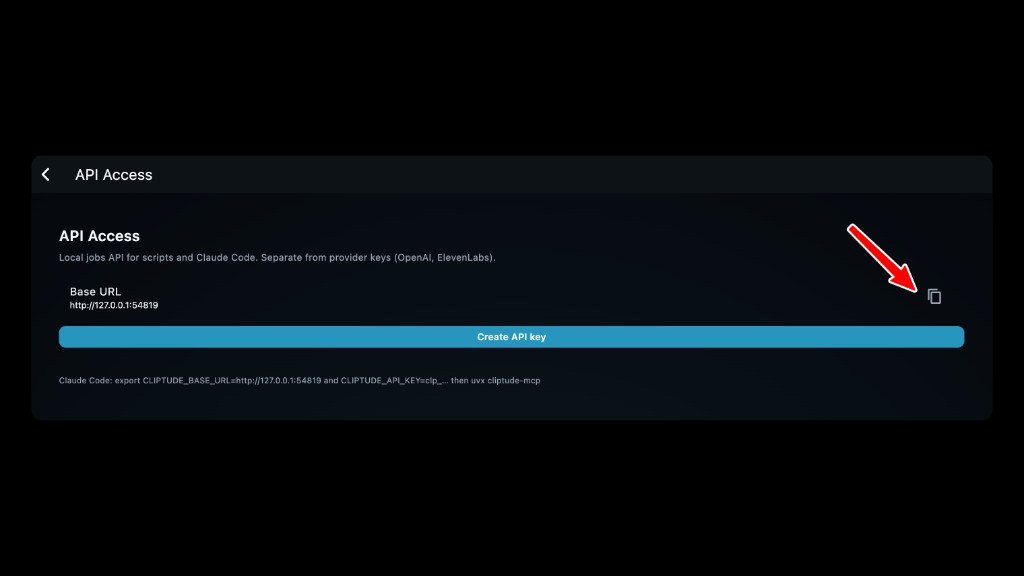
CLIPTUDE_BASE_URL and CLIPTUDE_API_KEY.
Saved templates live on this machine, on the Desktop account you are signed into. They are not on cliptude.com. The in-app New video wizard does not pick a template. Use the local jobs API (CLI, MCP stdio, or REST) while Desktop stays open.
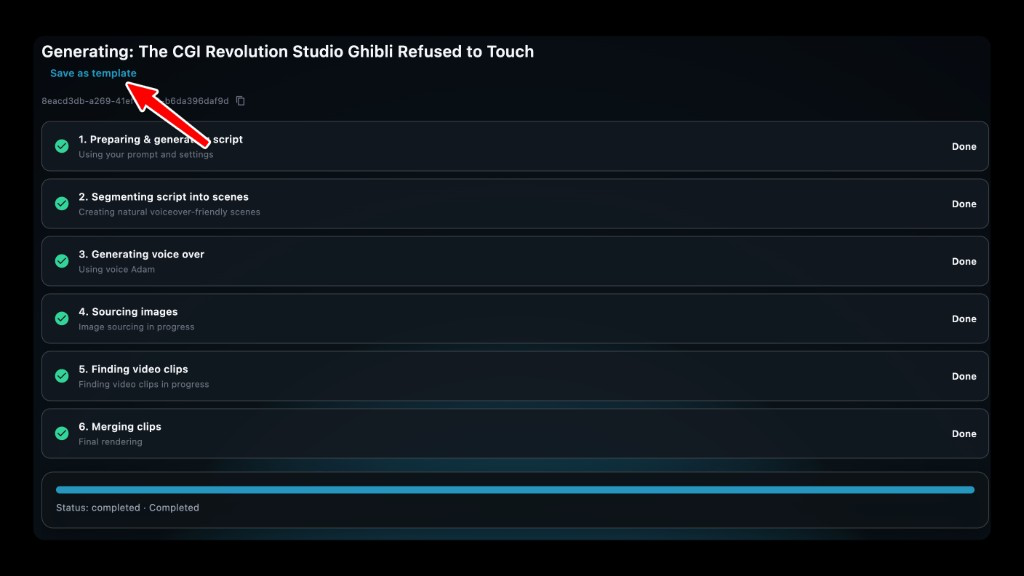
- Finish the wizard once (voice, model, style). On Progress (or Library), click Save as template and give it a name.
- Settings → API Access: copy the Base URL and Create API key (
clp_…). That key is local. Do not usecliptude auth loginorhttps://mcp.cliptude.com/mcp— those talk to the website and will not see Desktop templates. - Install
@cliptude/cliif you have not already. Export the Base URL and local key (do not runcliptude auth login), then generate with the template name. Prefer--script-fileafter research; never copy the title into--prompt.
export CLIPTUDE_BASE_URL='http://127.0.0.1:<port-from-API-Access>'
export CLIPTUDE_API_KEY='clp_…'
cliptude templates
cliptude generate --template "Finance vector weekly" --title "Why index funds win" --script-file script.txt
cliptude status <job-id>
If cliptude templates is empty, the CLI is still pointed at SaaS or a different user. The finished file is output.path (local MP4), not an R2 URL. Stdio MCP:
export CLIPTUDE_API_KEY='clp_…'
export CLIPTUDE_BASE_URL='http://127.0.0.1:<port-from-API-Access>'
uvx cliptude-mcp
Avatar Video — Intro Only and AI Image + AI Video
REST, MCP, and CLI support Avatar Intro Only and AI Image + AI Video on Avatar Video templates. Save those toggles on the template (wizard or Saved Templates editor), then generate from REST / CLI / MCP. Jobs inherit the template unless you override per job.
list_templates/get_templateincludeavatar_intro_onlyandavatar_ai_footagewhenformatisavatar_video.create_jobaccepts the same booleans. Omit them to keep the template. Sendtrueorfalseto override that job only. Other formats → 400.- CLI:
--avatar-intro-only/--no-avatar-intro-onlyand--avatar-ai-footage/--no-avatar-ai-footage. - MCP:
create_job(..., avatar_intro_only=true, avatar_ai_footage=true). Same fields onget_jobfor Avatar Video jobs. - AI Image + AI Video skips stock and YouTube B-roll and adds a separate credit extra. Your own HeyGen key does not waive it. See Avatar Video Generation.
{
  "template_id": "uuid",
  "title": "Grandma egg trick",
  "script": "Grandma taught me this egg trick on a Sunday morning…",
  "avatar_intro_only": true,
  "avatar_ai_footage": true
}
cliptude generate --template "My avatar weekly" --title "Grandma egg trick" --script-file script.txt --avatar-ai-footage --avatar-intro-only
cliptude generate --template "My avatar weekly" --title "Grandma egg trick" --script-file script.txt --no-avatar-ai-footageMotion & effects options
REST, MCP, and CLI support the same Motion & effects controls as the Choose a theme and look wizard step, for Faceless Documentary, Faceless Top 10, Talking Head, and Avatar Video templates. Save the toggles and exclusion lists on the template, then override per job from REST / CLI / MCP. Jobs inherit the template unless you override.
list_templates/get_templateincludedisable_animations,disable_overlays,disable_effects,disable_transitions,excluded_animation_types, andexcluded_transition_kindsfor these formats.create_jobaccepts the same six fields. Omit any of them to keep the template's saved values; send a value to override that job only.disable_animations— no animated text reveals or motion-graphic scenes.disable_overlays— no generated text overlays or graphic elements over footage (captions unaffected).disable_effects— no color grading, film grain, or light leaks (Ken Burns is unaffected).disable_transitions— hard cuts only.excluded_animation_types/excluded_transition_kindsare lists of string ids. Unknown ids are rejected with a 400. Valid animation type ids come from the wizard's Exclude motion graphics grid; valid transition slugs (for exampleflip-horizontal,film-burn) come from the wizard's Transitions grid. These work independently of the two booleans above — you can leave animations or transitions on overall and exclude only specific ones.- CLI:
--disable-animations/--no-disable-animations,--disable-overlays/--no-disable-overlays,--disable-effects/--no-disable-effects,--disable-transitions/--no-disable-transitions, and repeatable--exclude-animation-type TYPE/--exclude-transition SLUG. - MCP:
create_job(..., disable_animations=true, excluded_transition_kinds=["flip-horizontal", "glitch"]). Same fields onget_job.
{
  "template_id": "uuid",
  "title": "How the Cold War almost went hot",
  "script": "In October 1962, a U-2 spy plane photographed…",
  "disable_effects": true,
  "excluded_animation_types": ["kinetic_typography"],
  "excluded_transition_kinds": ["glitch", "film-burn"]
}
cliptude generate --template "History weekly" --title "How the Cold War almost went hot" --script-file script.txt \
--disable-effects --exclude-animation-type kinetic_typography --exclude-transition glitch --exclude-transition film-burn